Get Started
This guide walks you through the step-by-step process from installing OZero Security to applying your first security feature. You can complete the basic setup in about 3 minutes even without security expertise.
Choose your goal
Start with the path that matches what you need to do now. Each card opens the relevant section of this manual or the API reference.
Overview
OZero Security protects Unity games by executing security logic in the Native C++ layer, which is difficult for general hacking tools to access. Core protection features operate simply by activating modules in the dashboard within the Unity Editor. No scene setup or additional code writing is required.
- Build integrity check (app tampering detection)
- Speed hack and time hack detection
- Memory injection monitoring
- Encrypted in-game variable types (Secure Types)
- Encrypted save files and PlayerPrefs
- Activated detectors are automatically prepared when the SDK starts. There is no need to place separate objects in the scene or write repetitive initialization code.
- Security settings are protected during the build process, so plaintext configurations are not exposed in general player distributions.
- The Native C++ runtime guard provides an additional verification layer outside of managed Unity code.
- Detection results can be checked through callbacks, logs, and Pro telemetry, making it easy to track causes during testing and operation.
1
Import Package
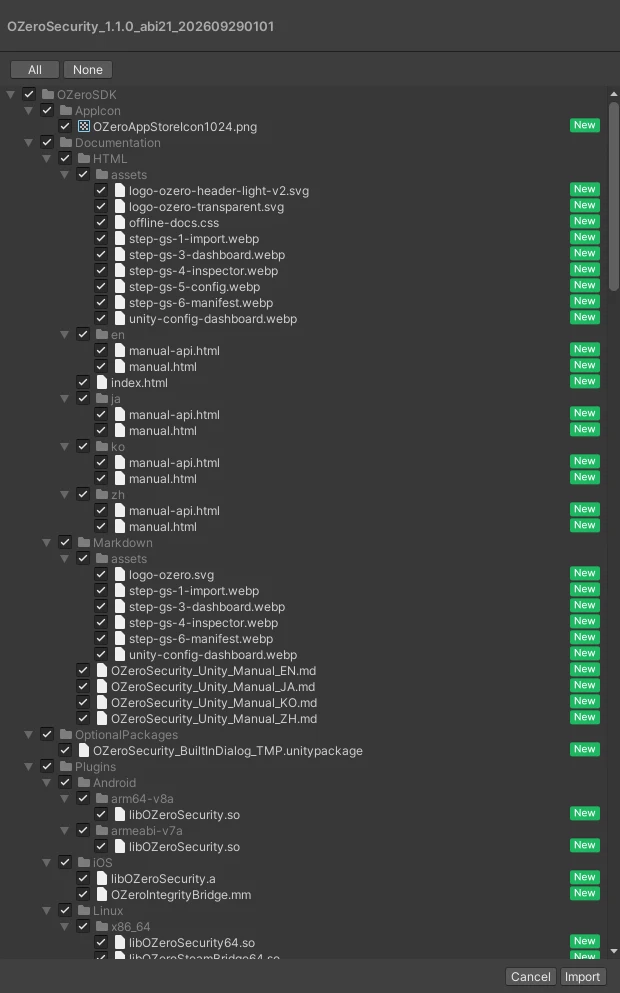
Open the Unity Editor and import the OZero Security package. You can import it via the Unity Package Manager or by double-clicking the .unitypackage file.
When the Import Unity Package dialog appears, leave all items checked and click Import. The necessary scripts, native plugins, and editor tools will be added automatically.
Windows: "Copying file failed / Access is denied" while updating from 1.2.0 to 1.2.1
When you import 1.2.1 into a 1.2.0 project, a Copying file failed … Access is denied popup can appear for Plugins/x86_64/OZeroSecurity64.dll and keep coming back after you restart Unity. The editor loads the SDK's native library as soon as it starts, so Windows locks the file. macOS and Linux are not affected, and the next update is planned to remove the need for these steps.
- In the popup, click Cancel (not Force Quit).
- Quit Unity completely. Check Task Manager to make sure no
Unity.exeis left running. - In File Explorer, delete only
OZeroSecurity64.dllandOZeroPCStoreBridge64.dllinAssets/OZeroSecurity/Plugins/x86_64/. Keep their.metafiles. - Open the project in Unity. You can ignore console errors about the DLLs.
- In Package Manager, Import the whole 1.2.1 package again.
- Restart Unity, then run Check Setup.
Welcome window
After you import an OZero SDK package, the Welcome window opens automatically (Window > OZero Security > Welcome). It opens after every import of an OZero SDK package, even when the same version is imported again, and when a new SDK version is loaded for the first time. Importing the Built-in TMP dialog package or TMP resources does not open it.
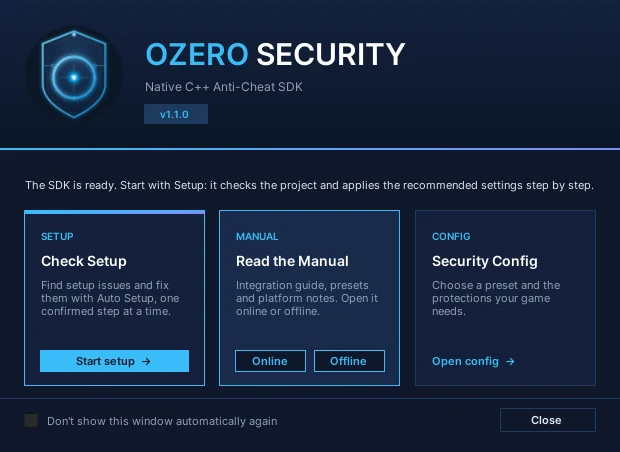
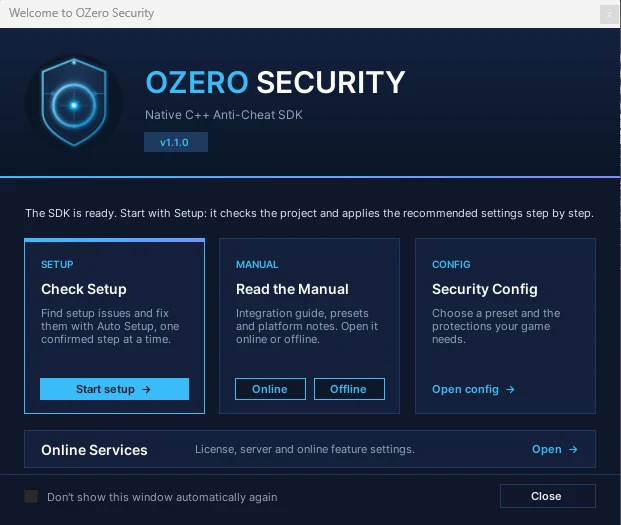
The top of the window is one large card, STEP 1 · Run Setup. Start setup opens Check Setup, which lists what the project still needs; Auto Setup then applies it, asking before each change. Below it are two cards for after setup. Read the Manual has Online (the manual on the OZero website) and Offline (the HTML manual bundled with the package, Assets/OZeroSecurity/Documentation/HTML/index.html); Offline is disabled when the bundled manual is missing. Security Config (Open config) opens Edit > Project Settings > OZero Security, where you change the preset or individual protections once setup is done.
With the online add-on installed, the window also shows an Online Services row. Open opens Window > OZero Security > Online Services (creating the settings if needed).
With the online add-on installed, Offline opens the manual bundled with the add-on (Assets/OZeroSecurity/Online/Documentation/HTML/index.html).
Tick Don't show this window automatically again to stop it opening automatically in this project; you can still open it from the menu. It never opens in batch mode or when the OZERO_SUPPRESS_WELCOME environment variable is set, so CI and automated builds are not interrupted.
ProjectSettings/OZeroSecuritySettings.asset, Standard preset) and, with the online add-on, the license settings (ProjectSettings/OZeroLicenseSettings.asset) are created automatically once the Unity Editor is idle after import. A CI job that only imports the package with -batchmode -quit does not create them: open the project in the Editor once, or call OZeroSecurityProjectSettings.LoadOrCreate() (and OZeroLicenseProjectSettings.LoadOrCreate() for the add-on) from a build script. Commit ProjectSettings/OZeroSecuritySettings.asset and ProjectSettings/OZeroLicenseSettings.asset to version control. Do not commit UserSettings/OZeroSecuritySecrets.json; it holds per-user secrets.
2
Open Dashboard
Once the import is complete, open the Config Dashboard from the Unity menu bar:
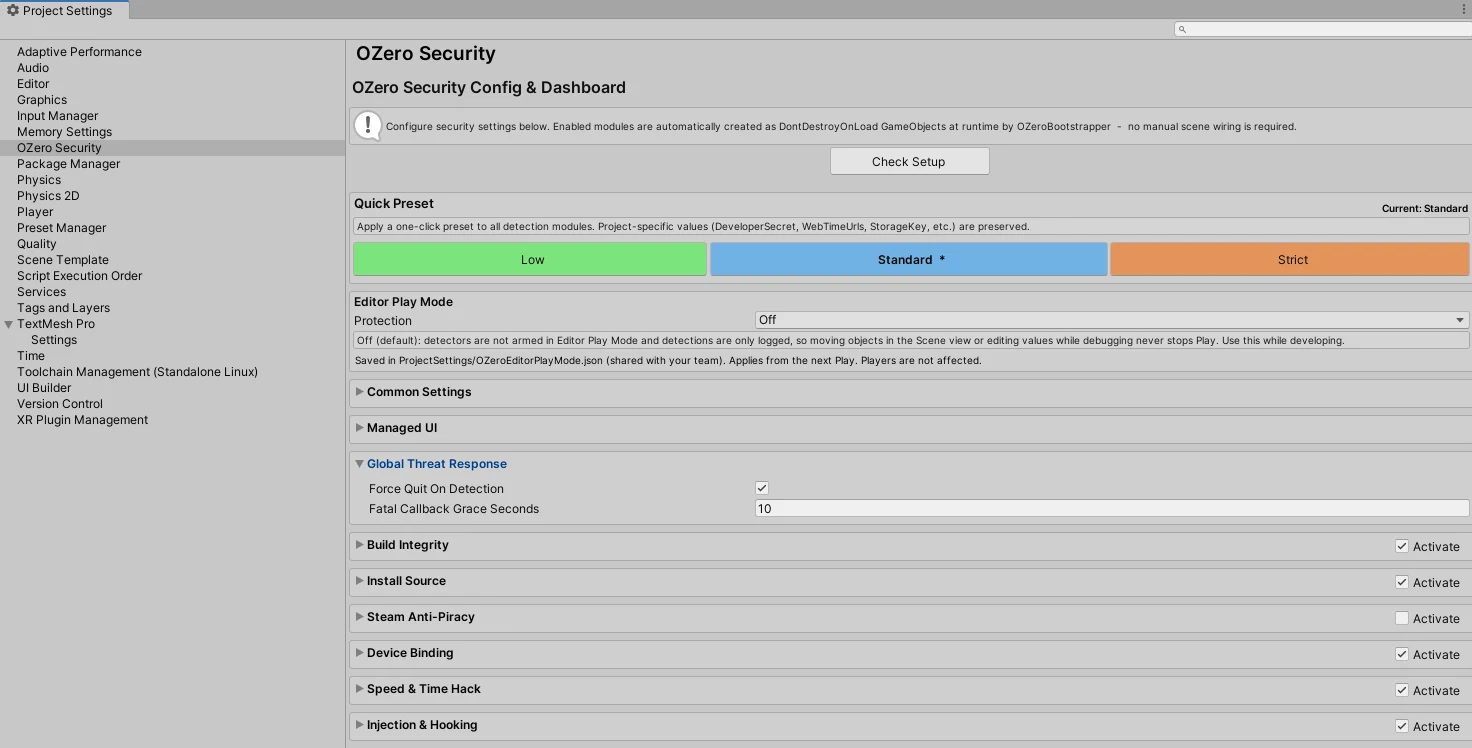
When the Config Dashboard opens, you can manage presets, security modules, licenses, and build integrity settings all at once on this screen. There is no need to manually locate and modify files in the Project window. The dashboard is the OZero Security page of Edit > Project Settings; you can also open it there.
Unity Editor Menu Reference
OZeroSecurity uses Window > OZero Security for setup windows and Tools > OZero Security for diagnostic or bake commands. Security presets are intentionally applied from Config & Dashboard, so you can review the resulting settings before saving.
- Window > OZero Security > Welcome: start screen
- Window > OZero Security > Config & Dashboard: security settings (opens Edit > Project Settings > OZero Security)
- Window > OZero Security > Check Setup: setup check and Auto Setup
More: full menu list
| Menu | Role | When to use |
|---|---|---|
| Window > OZero Security > Welcome | Opens the SDK start screen with shortcuts to Check Setup, the manual (online or offline), and Security Config. | Opens automatically after an OZero SDK package import. Use this menu to open it again later. |
| Window > OZero Security > Config & Dashboard | Opens Edit > Project Settings > OZero Security, where the security settings are edited. The settings are created with the Standard preset if the project has none. | Use this first to apply presets, enable modules, configure response policy, and review build-integrity settings. |
| Window > OZero Security > Online Services | Opens the Online Services settings (ProjectSettings/OZeroLicenseSettings.asset) in a separate window: license, server connection and online services. The same settings are in Security Config (each module's Pro - Online block and the Pro - License & Online Services card). | Use this to enter Standard and Pro license settings, server endpoints, and telemetry options. |
| Window > OZero Security > Check Setup | Runs editor diagnostics for common project and release-configuration issues. | Run after import, before a release build, or when a module does not behave as expected. |
| Window > OZero Security > macOS Distribution Signing | Sets up Developer ID signing, optional notarization and the OZero integrity re-bake for every macOS player build. | Turn it on before you ship macOS builds made on a Mac. Builds made on Windows use the signing script instead (see macOS signing). |
| Tools > OZero Security > Internal > Check Integrity Manifest | Opens an OZero integrity manifest and displays the decoded content for inspection. | Use during build-integrity troubleshooting or support investigation. |
| Tools > OZero Security > Internal > Bake Security Config Blob | Regenerates the protected security config blob in StreamingAssets. | Use for advanced debugging or CI workflows. Normal player builds bake this automatically. |
| Tools > OZero Security > Internal > Bake Assembly Hash | Re-bakes oz_ahash.bin for the most recent build output. | Use only after a code-only rebuild when the full build pipeline was not re-run. |
| Tools > OZero Security > Re-bake Integrity After Code Signing (Windows or Linux player)... | Re-bakes the OZero integrity files of a Windows or Linux player after code signing. | Use after you sign the executable or native modules (see Windows / Linux signing). |
| Tools > OZero Security > Setup > Android > Keystore SHA Extractor | Extracts SHA-1 and SHA-256 fingerprints from an Android keystore. | Use when filling Android signing fingerprints for Build Integrity checks. |
| Tools > OZero Security > Internal > Add Debug SHA Key to Config | Finds the Android debug keystore and adds its SHA-256 fingerprint to the config. | Use only for local Android debug builds. Release builds should use the release signing key fingerprint. |
| Tools > OZero Security > Setup > PC Store > Scan Redistributable | Scans a PC build or plugin folder for Steam redistributable files and known emulator artifacts. | Use before Steam release packaging or when checking whether suspicious Steam files are included. |
| Tools > OZero Security > Diagnostics > Check Time.timeScale Usage | Scans scripts for direct Time.timeScale writes that can conflict with OZero time protection. | Run before release or when the Speed & Time Hack module reports a project-side time-scale policy issue. |
Check Setup and Auto Setup
Open Window > OZero Security > Check Setup, or press Start setup in the Welcome window. Run it once right after importing the package and again before a release build.
Check Setup checks the project, the active build target and the security settings, and lists the items that block a build and the recommended changes. Each item has a Docs button and a fix button; fix the blocking items first.
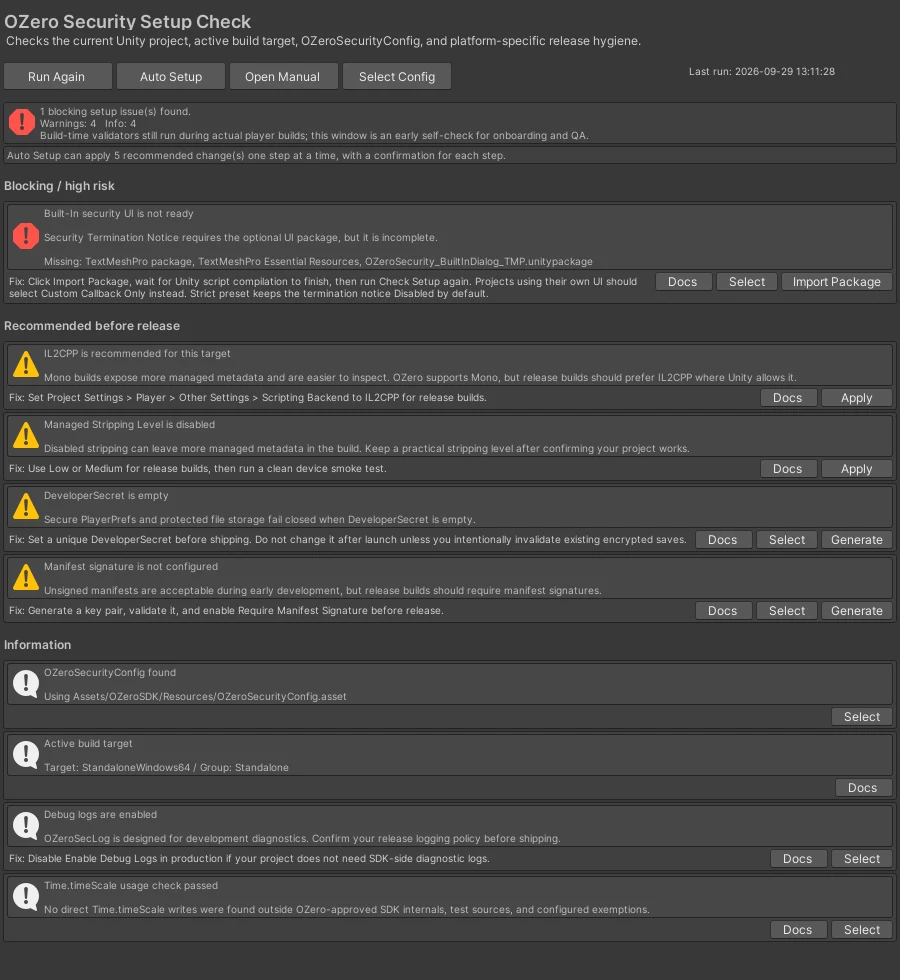
Press Auto Setup to go through the recommended changes one step at a time. Each step shows the current and the new value; choose Apply or Skip. At the end, a summary lists what was applied, what was skipped and what is still open. Once no blocking item and no Auto Setup change is left, Check Setup shows a Setup complete box with an Open Build Settings button; build your game as usual from there.
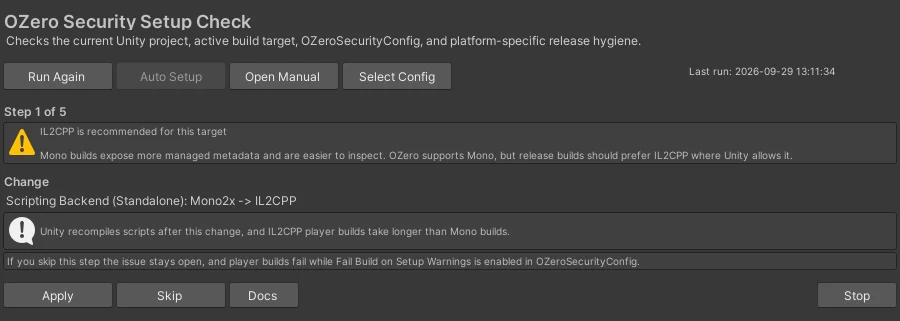
What Auto Setup changes: turns off Development Build, switches to IL2CPP, sets Managed Stripping to Low, sets Android API 24 and ARM64, generates the DeveloperSecret, imports the TMP dialog package, generates the manifest signing key (and turns on Require Manifest Signature), and adds the Android debug SHA.
More: Auto Setup steps and behavior
Check Setup (Window > OZero Security > Check Setup, or Start setup in the Welcome window) checks the project, the active build target, the security settings, and platform release settings, and lists blocking issues, recommendations, and information. Each item has Docs and fix buttons, and the top of the window shows how many recommended changes Auto Setup can apply. The buttons at the top are, from the left, Auto Setup (with the number of pending changes), Re-check (runs the checks again), Manual and Security Config. Security Config opens Edit > Project Settings > OZero Security. Build-time validators still run during actual player builds.
The first time Check Setup opens after an OZero SDK package is imported, it asks whether to start Auto Setup when there are changes it can apply (Start Auto Setup / Not now). It asks again after every SDK package import, even of the same version, and never in batch mode. You can also start it later with the Auto Setup button.
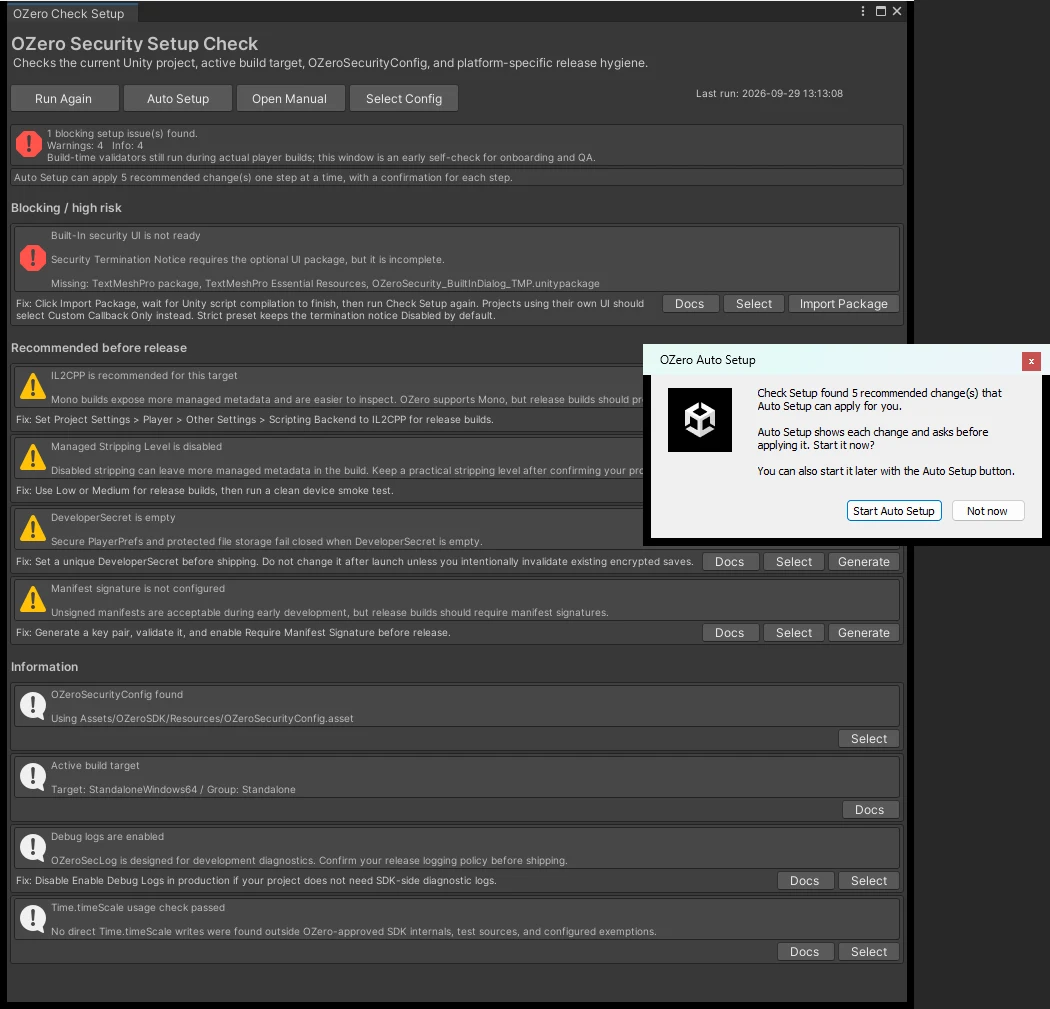
Auto Setup first lists the planned steps; only the steps that the project and the active build target need are listed. Choose Start (or Cancel). For each step it shows the current value and the new value; choose Apply, Skip, or Stop. At the end, a summary lists what was applied, what was skipped, and what is still open, and Run Auto Setup Again starts it over. The possible steps are:
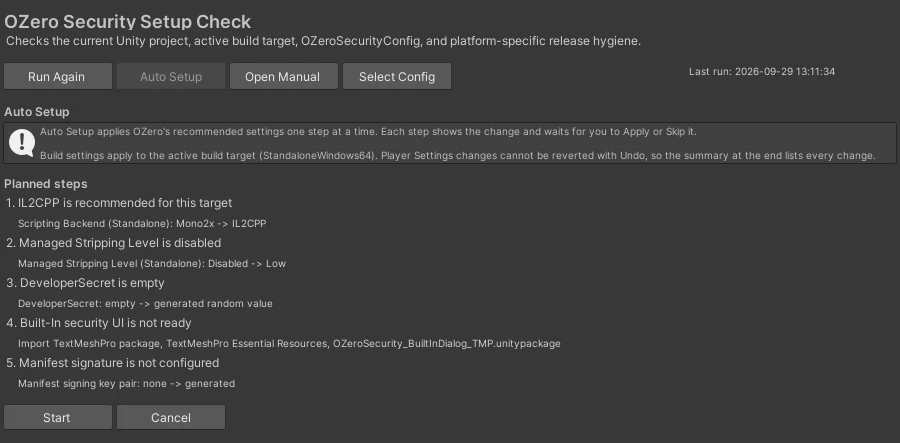
- Turn off Development Build.
- Switch the scripting backend to IL2CPP.
- IL2CPP only: set Managed Stripping Level to Low.
- Android: set the minimum API level to 24 and the target architecture to ARM64.
- Generate a
DeveloperSecret. - Import the Built-in TMP dialog package. Auto Setup installs TextMeshPro / Unity UI if needed, imports TMP Essential Resources, then imports the dialog package. A Processing screen shows the current stage and elapsed seconds until all of it finishes, then the next step starts. It continues across script reloads.
- Generate the manifest signing key pair; the trust anchor is updated automatically. The step screen shows where the private key file is created. No result dialog appears: the private key location and fingerprint are written to the Console. If a key already exists, a dialog asks before it is overwritten. The next step turns on Require Manifest Signature.
- Add the Android debug SHA. The result is written to the Console. If there is no debug keystore, a dialog asks whether to create one. Running these tools from their own buttons (Security Config, Keystore SHA Extractor) still shows the result dialogs.
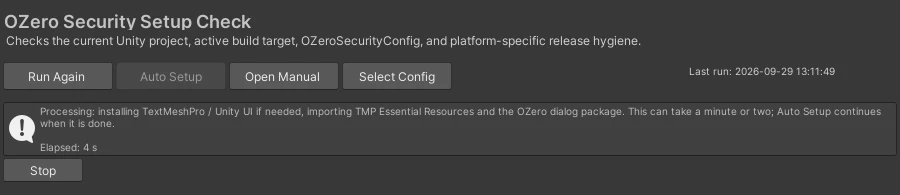
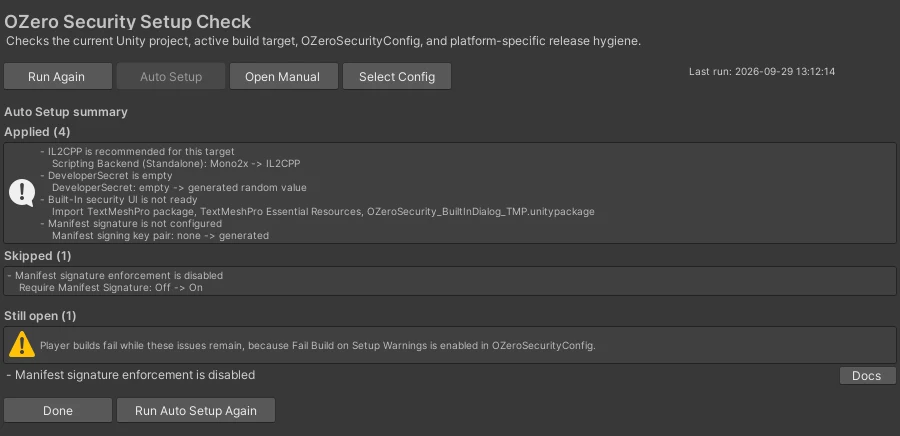
With Fail Build on Setup Warnings on (on by default in the security settings), generating the key and requiring manifest signatures are regular steps: if you skip them, the warnings stay and the player build fails at preflight, and the step and summary screens say so. Only when that setting is off are they optional steps marked "(optional, review first)". The key step shows where the private key file is created; keep it outside the project and out of version control, and make it available on every build machine, including CI.
Steps this Editor cannot apply (for example the IL2CPP step when the Unity Editor does not have the IL2CPP module installed) are not walked through; the overview and the summary list them separately under Needs your action. Without the IL2CPP module, add it for the target platform in Unity Hub > Installs > Add modules, then run Auto Setup again. Player Settings changes cannot be reverted with Undo; the summary lists every change that was applied.
Two Check Setup errors protect OZero's native load anchor (the limits of client-side protection). OZero native plugins are not set to Load on startup: Auto Setup turns Load on startup back on for the OZero native plugins; do not turn it off. Android boot provider library is missing: Android builds with the Mono backend need this library; re-import the OZero Security package to restore Assets/OZeroSecurity/Plugins/Android/OZeroSecurityBoot.androidlib.
With the online add-on, Auto Setup can also fill in values that only you have. These steps show input fields, each with its label above it: enter the value and press Apply. The value is checked before it is saved and is never written to the Console or logs. If the check fails, the step shows why and saves nothing; enter a corrected value or press Skip.
- License Key: for Pro license key is empty and Native Variant <NNNN> needs your license key / is bound to a different license key. With a license-bound Native Variant in the project, the key is checked against that variant's license before it is saved; a key of another license is not saved.
- Server Public Key: for Pro server signing public key is not configured. Copy the signing public key (64 hex characters) from Customer Portal > Server Key; other input is rejected, and the key is stored in lowercase.
- Application Identifier: for Application identifier is not registered for Native Variant <NNNN>. The value depends on the active build target and matches Customer Portal > Platform settings. Android: Package Name; iOS: Bundle Identifier; the field starts with the current identifier. Apply also turns on Override Default Package Name / Bundle Identifier in Player Settings, because Unity ignores the identifier while it is off. Windows, macOS and Linux: enter the Company Name and Product Name registered for this platform in Customer Portal > Platform settings (shown there as Company / Product) in their own fields, which start with the current values; they are checked as company.product or com.company.product. Apply sets Player Settings Company Name and Product Name; the Product Name is also the name of the built app. WebGL is identified by the page origin (domain) registered in the portal, so nothing in the project needs to change and the step shows as unavailable. The value must be registered for your license; if it is not, the step asks you to register it in the Customer Portal and download the package again.
Editor Play Mode (during development)
Editor Play Mode has its own protection setting, so OZero does not get in the way of development. Choose Off or Test in Window > OZero Security > Config & Dashboard > Editor Play Mode > Protection.
| Protection | In Editor Play Mode | When to use |
|---|---|---|
| Off | Interrupts nothing; detections are only logged. | Default. For everyday development. |
| Test | Runs the response, notice UI and callbacks in the Editor, and stops Play instead of quitting. | To try your Receiver and notice UI. |
The Editor is not a release environment: always check the final behavior in a player build.
More: what each mode does and logs
Editor Play Mode has its own protection setting, so OZero does not interrupt development. Choose Off or Test in Window > OZero Security > Config & Dashboard > Editor Play Mode > Protection. The setting is saved in ProjectSettings/OZeroEditorPlayMode.json, so the team shares it through version control. It is kept out of the security settings, so it has no effect on player builds or on the security config hash. A change applies from the next Play, and when Play starts the Console logs the active mode in one line ([OZero] Editor Play Mode Protection: Off - ...).
Off: Detectors (speed, injection, integrity and others) are not armed. A detection from a PhysicsHack component you added yourself or from SecureVariable tampering is logged as a warning once per type ([OZero] <type> detected in Editor Play Mode - no response because Editor Play Mode Protection is Off) and nothing else happens: no callback, no notice UI, no telemetry, and Play keeps running. SecureVariable encryption itself works as usual. A security level rejection (for example from a config hash allowlist) is also only logged in Editor Play Mode.
Test: Detectors arm from the current settings without a build; a StreamingAssets/oz_cfg.bin left over from an earlier build is ignored. A detection runs the configured response (callback, notice UI, telemetry). Where a player would exit, only Play Mode stops, after the same grace period, with the log Editor Play Mode will stop in N ms. A security level rejection runs its configured response (Fail On Security Level Reject).
In both modes the SDK never ends the Unity Editor process, and the native boot checks (debugger, emulator, Linux host layer) are always off in the Editor. The Editor is not a release environment: always check the final behavior in a player build.
With the online add-on, Pro activation and the online features work in the Editor as before. The add-on's server loops stop when you exit Play Mode or scripts reload.
3
Enable Modules
You can check the list of security modules and toggle switches inside the dashboard. Enable the modules you want to use. Below is the recommended starting configuration.
Select Security Preset
First select a preset, then adjust individual modules to fit your project. For typical live games, we recommend starting with Standard. It offers the best balance of protection level, performance, and false positive risk.
| Preset | Recommended Use | Applied Policy Summary | Pro server attestation (Check Integrity With Server) |
|---|---|---|---|
| Low | Prototypes, development builds, early QA | Core checks only (for testing) | Off. For games that must run offline (no server build verdict or in-game re-checks) |
| Standard | Most released games | Core protection + startup and runtime verification (recommended) | On. OZeroManaged verdict; online required at startup |
| Strict | High-risk live service, PvP, competitive builds | Broadest coverage; apply after thorough testing | On. CustomerGameServer verdict: your game server issues the challenge, the client calls OZeroOnlineAttestation.RequestGameServerAttestation, and your game server verifies with /v1/validate |
| Module | Feature Description | Recommended |
|---|---|---|
| Build Integrity Validator | Detect app binary tampering | Recommended |
| Speed Hack Detector | Detect time manipulation cheats | Recommended |
| Injection Detector | Monitor memory hooking tools | Recommended |
| Install Source Validator | Block illegal APKs (Android only) | Optional |
More: what the presets change
The Quick Preset panel shows the preset that matches the current settings, for example Current: Standard, and marks that button in bold with *. After you change a value by hand, it shows Current: Custom and no button is marked. Standard is the recommended preset and its button reads Standard (Recommended); the preset names stay Low / Standard / Strict. A short description appears under each button and as its tooltip.
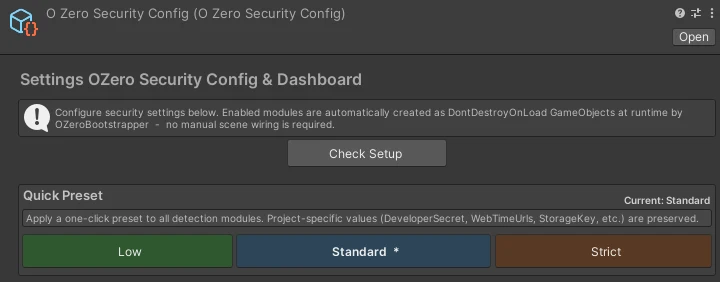
Windows system-module scanning (enableWindowsSystemModuleScan): Low OFF / Standard and Strict ON. These are security presets, not license tiers. See Injection settings for compatibility and observation rules.
Settings downloads are controlled by enableRemoteSpeedHackConfig, enableRemoteInjectionConfig, and enableRemotePhysicsConfig. A security preset turns them on only when the project's license tier (Online Services settings) is Pro; on Standard, or without license settings, presets leave every Pro-only server option off (re-apply the preset after switching the tier to Pro). They work only on Pro. The remote config options themselves do not turn on BIV server verification, install-source sync, the server whitelist or telemetry; presets change those values separately (see the preset table above).
- Low: Maintains only lightweight core checks. Relaxes platform native checks and forced termination policies so test environments aren't blocked too early.
- Standard: Turns on the core protection set, startup verification, runtime re-verification, emulator checks, and recommended IL2CPP file coverage. A configuration balancing compatibility and protection level.
- Strict: Applies the broadest coverage and treats more failures as critical violations. Apply after sufficiently testing platforms, signing, and store distribution flows.
License Model — Standard / Pro
OZero Security is provided in two tiers: Standard and Pro. Standard uses local protection features without server integration. Pro adds per-project Native Variant packages, manifest / Bundle ID binding, telemetry, signed server time, remote policies, and server verification.
| Item | Standard | Pro |
|---|---|---|
| License Key | — (None) | OZ-PRO-XXXX ×6 |
| 10 Protection Modules | All 10 protection modules active | All 10 (Same as Standard) |
| Independent native security module per customer | Not available | Available |
| Cloud Telemetry | None | Enabled |
| Remote settings | None | Available |
| Server-side build integrity verification | None | Available |
| Signed Time (Clock manipulation prevention) | Off — WebTime uses HTTPS HEAD only |
On — Uses signed /v1/time response |
Wording for your app's privacy policy
An app with Pro server features turned on must tell its end users what information the OZero SDK processes. Paste the wording below into your app's privacy policy and keep or remove the bracketed parts to match the features you turned on. For the full list, see the OZeroSecurity Privacy Policy.
한국어
이 앱은 부정 행위와 변조를 방지하기 위해 OZero Security SDK(오제로시큐리티 주식회사)를 사용합니다. 보안 검사는 기기 안에서 이루어지며, [Pro 서버 기능이 켜진 경우] 보안 이벤트가 발생하면 다음 정보가 OZero 서버로 전송됩니다: 앱별로 해시된 기기 식별자, 플랫폼·운영체제, 앱 버전, 탐지된 보안 이벤트의 종류와 결과, 탐지에 관련된 외부 프로그램 모듈의 파일명·서명자·해시, 접속 국가. [물리 검증을 켠 경우: 캐릭터 위치·속도·씬 이름.] [Steam 확인을 켠 경우: Steam 인증 티켓과 SteamID(해시로 저장).] 기기의 원문 식별자, IP 주소, 채팅·닉네임·결제 정보는 전송되지 않습니다. 전송된 기록은 90일 후 삭제되며, 외부 프로그램 모듈 정보는 개인·기기와 연결되지 않는 형태로 OZero의 부정 프로그램 판별 기준을 개선하는 데 사용됩니다. 자세한 내용: https://www.ozerosecurity.com/privacy.htmlEnglish
This app uses the OZero Security SDK (OZero Security Inc.) to prevent cheating and tampering. Security checks run on the device. [When Pro server features are enabled] the following is sent to OZero servers when a security event occurs: an app-specific hashed device identifier, platform and OS, app version, the type and result of the security event, the file name, signer and hash of third-party modules involved in the detection, and the country of connection. [Physics validation: character position, velocity and scene name.] [Steam verification: the Steam auth ticket and SteamID, stored hashed.] The raw device identifier, IP address, chat, nicknames and payment data are not sent. Records are deleted after 90 days. Module information is used, in a form not linked to any person or device, to improve OZero's cheat-program classification. Details: https://www.ozerosecurity.com/privacy.html日本語
本アプリは不正行為と改ざんを防ぐために OZero Security SDK(OZero Security Inc.)を使用しています。セキュリティ検査は端末内で行われ、[Pro サーバー機能が有効な場合] セキュリティイベント発生時に次の情報が OZero サーバーへ送信されます:アプリごとにハッシュ化した端末識別子、プラットフォーム・OS、アプリのバージョン、検知したイベントの種類と結果、検知に関係した外部モジュールのファイル名・署名者・ハッシュ、接続国。[物理検証:キャラクターの位置・速度・シーン名。][Steam 確認:Steam 認証チケットと SteamID(ハッシュで保存)。] 端末の生の識別子、IP アドレス、チャット・ニックネーム・決済情報は送信されません。記録は 90 日後に削除され、モジュール情報は個人や端末と結び付かない形で OZero の不正プログラム判定基準の改善に使われます。詳細:https://www.ozerosecurity.com/privacy.html中文(简体)
本应用使用 OZero Security SDK(OZero Security Inc.)防止作弊与篡改。安全检查在设备内进行,[启用 Pro 服务器功能时] 发生安全事件时会向 OZero 服务器发送以下信息:按应用哈希处理的设备标识符、平台与操作系统、应用版本、安全事件的类型与结果、与检测相关的第三方模块的文件名·签名者·哈希、连接国家。[物理验证:角色位置、速度与场景名。][Steam 验证:Steam 认证票据与 SteamID(以哈希保存)。] 不会发送设备原始标识符、IP 地址、聊天、昵称与支付信息。记录在 90 天后删除;模块信息以不关联个人或设备的形式用于改进 OZero 的作弊程序判定标准。详情:https://www.ozerosecurity.com/privacy.htmlOnline Services Settings
Security Config shows the add-on settings in two places. The Pro - License & Online Services card at the end of the Protection Modules group, which is the bottom of the page (after Steam Anti-Piracy (PC Only)), starts with License (tier and license key). With Tier Pro it also shows Server Connection, Offline & Device Policy, Security Level Enforcement (with the Security Config Hash (build allowlist) list), Telemetry, Online Verification UI and Validate License Now, and each detection module section (Build Integrity, Install Source (Android Only), Device Binding, Speed & Time Hack, Injection & Hooking, Steam Anti-Piracy (PC Only)) gets a Pro - Online block with that module's online settings. The block is disabled while the module's Activate is off.
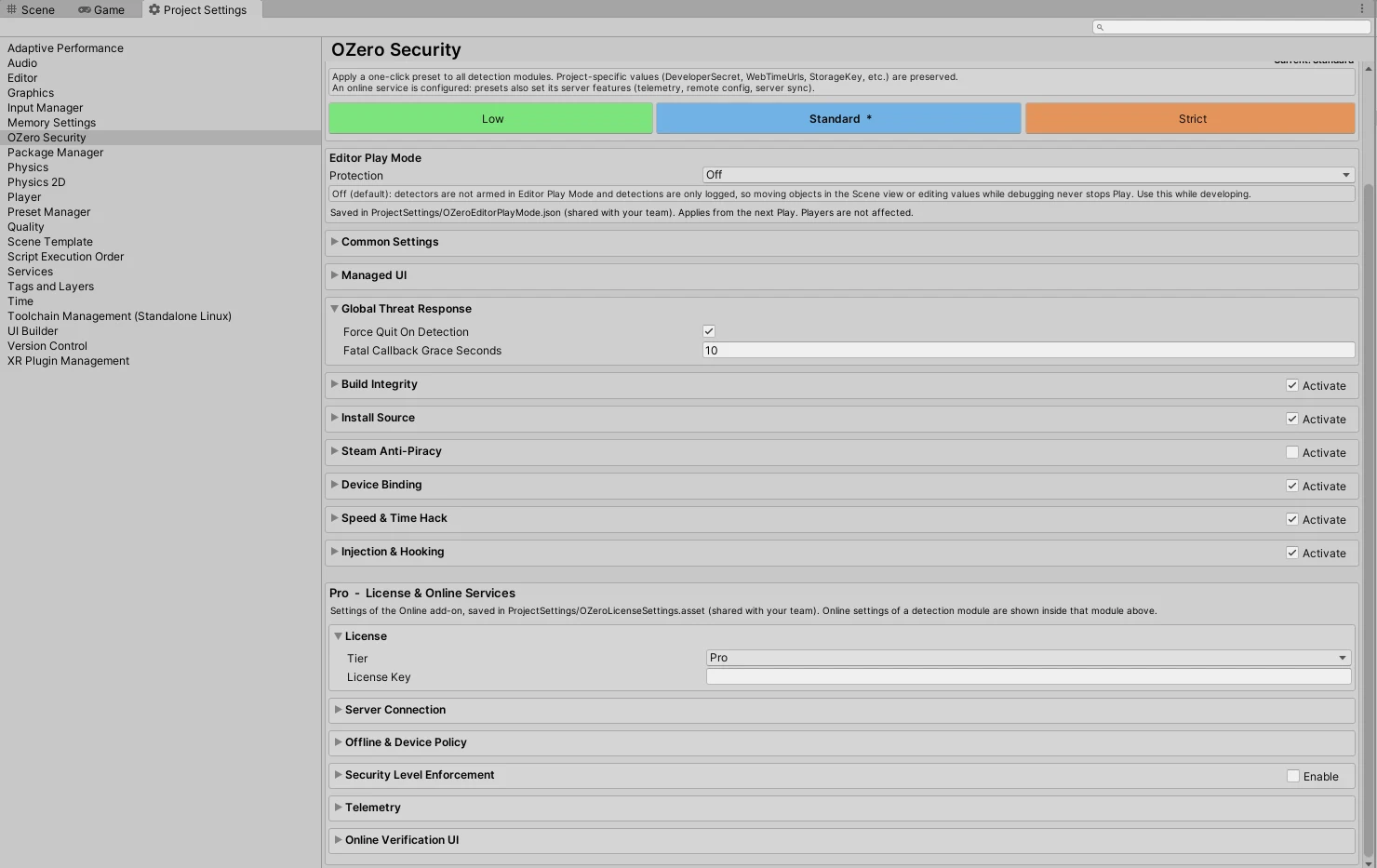
The values are saved in ProjectSettings/OZeroLicenseSettings.asset, which you commit to version control; there is no settings asset in the Project window. The same settings are also available in a stand-alone layout: the Online Services button in Security Config and in the Welcome window opens Window > OZero Security > Online Services (creating the settings if needed), with Select Settings Asset and Validate License Now. At the top of the window, Security Config and Check Setup take you to those screens. The rest of this section describes the stand-alone layout; the field names are the same in Security Config.
Choose the tier in the License section. The License Key field is shown for both tiers. With Standard, only the License section is shown, with a note that Standard runs serverless: online services are off and nothing is sent to the OZero server; enter the License Key only when you use a package with your Native Variant, and it is checked locally. Select Pro to show the server connection and the online services.
The settings are organised like Security Config, in this order: Quick Preset, License, Server Connection, Offline & Device Policy, Security Level Enforcement (turned on with Enable in its header), the module sections Build Integrity, Install Source, Device Binding, Speed & Time Hack, Injection & Hooking and Steam Anti-Piracy, and finally Telemetry and Online Verification UI.
There is one preset for the whole SDK. The Low / Standard / Strict buttons here apply the same preset as Security Config, so either place gives the same result. Here too Standard is the recommended preset, shown as Standard (Recommended), with a description under each button. Applying a preset updates the detection modules, the online service defaults and Declared Security Level together; the license, server URL and keys are kept. The panel shows the current state, for example Current: Standard, with that button in bold and marked *, and Current: Custom with no button marked after you change an online setting by hand. The Security Level Enforcement section warns when Declared Security Level differs from the applied preset.
The module sections use the same names and order as Security Config. Each header shows the module's state in Security Config (Active / Inactive, read-only), and each section starts with one line on what the online service adds to that module. The server switch is the first row of the section:
- Build Integrity: Check Integrity With Server
- Install Source: Check Installer With Server
- Device Binding: Verify Device With Server
- Speed & Time Hack and Injection & Hooking have several server features, so they have no single switch.
- Steam Anti-Piracy: Check Steam DRM With Server
In Security Config, a module's Pro - Online block is greyed out with Activate this module to use its online settings. while the module is off. In the stand-alone layout, the section of an inactive module says that these online settings have no effect until the module is activated, and offers Open Security Config.
Telemetry and Online Verification UI are online-only. Telemetry covers the security events sent to the Customer Portal and the remote physics config. Online Verification UI sets how the screens shown during server verification behave (checking, retry, online required and timeout): the UI policy, the retry and online-required times, the timeout action, and automatic retry when the network comes back. Dialog design and language follow Security Config > Player Notice (Managed UI). While both Check Integrity With Server and Check Steam DRM With Server are off, the section notes that it is not used.
The add-on has no separate log switch: its logs follow Enable Debug Logs in Security Config.
Pro Packages and Native Variant
Pro customers download the Pro unified package from the Customer Portal downloads: one .unitypackage made for the license, with the Standard SDK, the online add-on and the Native Variant for every platform. The card offers two options:
- With your Native Variant: the private native libraries assigned to this license. The card shows the assigned number (Variant · Native · ABI), and the package is bound to your license: the license key and the Bundle IDs / package names registered for it.
- With the Standard variant (0000): the Standard SDK's public native libraries as shipped, with no license binding.
When you rotate the Variant: builds you already made with the previous Variant keep working. The new Variant applies from builds made with the package you download after the rotation. A rotation counts against your rotation quota, and refunds are not available after a rotation.
To use a package with your Native Variant on Tier Standard, keep Tier on Standard and only enter the License Key in Security Config > Pro - License & Online Services > License. The build and the player check the key locally, and Tier Standard sends nothing to the OZero server. This relies on Allow Standard Build With Premium License, which is on by default; if it is off, Check Setup asks you to turn it on or to set Tier to Pro.
To build without a license key, download the package with the Standard variant (0000).
If you bought the SDK on the Unity Asset Store, install the SDK from the Asset Store and download only the Pro extension package from the Customer Portal: the online add-on and your assigned Native Variant, made for the SDK version you choose on the card. The SDK itself is not included.
Native Variant items in Check Setup
When the package contains a Native Variant, Check Setup reports whether the project matches it before you build. A player build stops with the same reason.
| Check Setup item | What to do |
|---|---|
| Native Variant <NNNN> needs your license key | Enter the License Key in Security Config > Pro - License & Online Services > License (Tier can stay Standard), or download the package with the Standard variant (0000). You can also enter it with Check Setup > Auto Setup. |
| Native Variant <NNNN> is bound to a different license key | Enter the key of the license the package was downloaded for, or download the package again while signed in with this license. You can also enter it with Check Setup > Auto Setup. |
| Application identifier is not registered for Native Variant <NNNN> | Match the values registered in Customer Portal > Platform settings for the build target. Android / iOS: turn on Player Settings > Other Settings > Override Default Package Name / Bundle Identifier and enter a registered Package Name / Bundle Identifier. Windows / macOS / Linux: set Company Name and Product Name to the registered values. WebGL: nothing to change in the project; it is identified by the registered page origin. Or register the identifier for your license in the Customer Portal and download the package again. You can also enter it with Check Setup > Auto Setup; it is checked against the Native Variant before it is set. |
| Native Variant <NNNN> is license-bound, but Tier is Standard | Turn on Allow Standard Build With Premium License, or set Tier to Pro. |
| Native Variant <NNNN> matches this project | Nothing to do. With Tier Standard the key is checked only locally. |
| Native Variant: Standard public (0000) | Nothing to do. The Standard variant (0000) needs no license key. |
Game Server Integration: Device ID and User UUID
Pro lets your game server work with the IDs OZero uses. Read the OZero device ID to store it with the player's account, and link your own user UUID (account ID) so that you can find the devices a user played on and block the user in the Customer Portal.
Reading the device ID
Read OZeroLicenseRuntime.CurrentDeviceId. With the default settings it is the same value the Customer Portal and telemetry show. Do not replace DeviceIdProvider to link accounts: that changes the device ID the server knows. Use the user UUID API below instead; it keeps the device ID.
Linking your user UUID
- After the player signs in, call
OZeroLicenseRuntime.SetExternalUserId(uuid). It returnsfalseand ignores the value when it is empty after trimming spaces, longer than 128 characters, or contains control characters. - On sign-out, call
OZeroLicenseRuntime.ClearExternalUserId().HasExternalUserIdtells whether a user is linked. - The UUID is hashed on the device with SHA-256 and a per-license salt. Only the hash is sent with telemetry, physics events and device policy checks, and only the hash is stored on the server. The original UUID never leaves the device and is not written to disk.
- You can call it before activation finishes. The SDK keeps the UUID in memory and starts sending the hash after activation.
Blocking a user
In the Customer Portal, a block rule for a user has one of two actions:
- Callback only: the game receives a policy action (
Module = "user_policy",PolicyId= rule ID,Reason= the operator's reason) once per session and decides what to do. The session is not ended. - Terminate: the game first receives a policy action (
Module = "user_policy",ActionId = "user_blocked",Reason = "terminate"). The SDK then shows the same termination notice as a device policy block (OZ-SEC-0E) and ends the session.
To tell a user block from a device block, read OZeroLicenseRuntime.LastServerBlockCode: "USER_BLOCKED" for a user, "DEVICE_BLOCKED" for a device. The check runs about 5 seconds after SetExternalUserId, even when the device policy heartbeat is off, and at most once every 30 seconds. If the network fails, the session is not ended; the next check decides.
Customer Portal: User UUID page
Open Operations > User UUID in the Customer Portal (Pro). The page has three tabs:
- Find user: enter the UUID your game passed to
SetExternalUserId. The browser hashes it before sending, so the raw value never reaches the server. The result shows the devices the user played on (first and last seen, event count), recent events (telemetry, physics events, policy blocks) and the block status, with buttons to create, edit or lift a block rule. Find by device takes a device ID (CurrentDeviceId) and shows how many users are linked and the first 8 characters of each user key. Raw UUIDs cannot be shown; search by UUID to confirm a user. - Block rules: lists the rules (In effect or All). New rule takes the user's UUID, the action (Callback only or Terminate), a reason that is also sent to the game callback, and an expiry: Never (default, until lifted), 7, 30 or 90 days, or a chosen date. Saving a rule for a user who already has one updates it. Each rule shows where it was made: Portal, Server API or Operator.
- Settings: shows the license's salt, the formula, the UUID normalization rule, the current counts, and C#, Node.js and Python examples for computing the same hash (h1) on your server. Your server uses this h1 with the server API. The game client does not need the salt; the SDK receives it at activation.
Reissue salt (Settings tab) breaks existing links: user links and block rules made with the old salt no longer match your users, and existing rules stay under their old keys. The game gets the new salt at its next activation, and your server must recompute h1 with it.
Saving or lifting a block rule and reissuing the salt are recorded in Operation history under the User UUID category.
The Customer Portal is a single-page app. If a screen looks outdated or broken after an update, reload the page.
The same examples as the Settings tab. Check your implementation with the test vector in the API reference (OZeroLicenseRuntime).
// C#
using System.Security.Cryptography;
using System.Text;

static string ExtUserHash(string salt, string uuid)
{
    var id = uuid.Trim(' ', '\t', '\n', '\v', '\f', '\r');
    var bytes = SHA256.HashData(Encoding.UTF8.GetBytes("OZERO-EXTUID-V1|" + salt + "|" + id));
    return Convert.ToHexString(bytes).ToLowerInvariant();
}

// Node.js
const crypto = require("crypto");

function extUserHash(salt, uuid) {
  const id = uuid.replace(/^[ \t\n\v\f\r]+|[ \t\n\v\f\r]+$/g, "");
  return crypto.createHash("sha256").update("OZERO-EXTUID-V1|" + salt + "|" + id, "utf8").digest("hex");
}

# Python
import hashlib

def ext_user_hash(salt: str, uuid: str) -> str:
    uid = uuid.strip(" \t\n\v\f\r")
    return hashlib.sha256(f"OZERO-EXTUID-V1|{salt}|{uid}".encode("utf-8")).hexdigest()
Example: sign-in, sign-out and the policy callback
using OZeroSDK.Security;
using OZeroSDK.Security.License;
using UnityEngine;

public sealed class OZeroAccountLink : MonoBehaviour
{
    private void OnEnable()
        => OZeroSecurityManager.Instance.RegisterUserPolicyActionCallback(OnPolicyAction);

    private void OnDisable()
        => OZeroSecurityManager.Instance.UnregisterUserPolicyActionCallback(OnPolicyAction);

    // Call after your sign-in succeeds.
    public void OnSignedIn(string accountUuid)
    {
        if (!OZeroLicenseRuntime.SetExternalUserId(accountUuid))
            Debug.LogWarning("OZero: user id rejected (empty, too long, or control characters).");

        // Optional: keep the OZero device id with the account on your server.
        string deviceId = OZeroLicenseRuntime.CurrentDeviceId;
        MyGameServer.ReportDevice(accountUuid, deviceId);
    }

    // Call on sign-out.
    public void OnSignedOut() => OZeroLicenseRuntime.ClearExternalUserId();

    private void OnPolicyAction(OZeroPolicyActionEvent evt)
    {
        if (evt.Module != "user_policy")
            return;

        if (evt.ActionId == "user_blocked")
        {
            // Terminate rule: the SDK shows the termination notice and ends the session next.
            MyGame.SaveQuickly();
            return;
        }

        // Callback-only rule: the game decides what to do.
        Debug.LogWarning($"User block rule {evt.PolicyId}: {evt.Reason}");
        MyGame.RestrictAccount(evt.Reason);
    }
}
Privacy and store disclosures
- Use a pseudonymous account ID as the UUID, not an email address or a phone number.
- iOS: the add-on's privacy manifest already declares User ID, so no extra entry is needed.
- Google Play: declare User IDs in the Data safety form when you link user UUIDs.
Security Config Hash Allowlist
Every build seals its security settings (OZeroSecurityConfig, including the online add-on settings) and computes a SHA-256 hash of them. When you approve the hashes of the builds you ship, the server's security level check accepts only those builds, so a tampered build with weakened settings cannot pass by declaring a high security level.
- Compatibility mode (no approved hash): only the declared security level is compared; every build passes the hash check.
- Enforced mode (one or more approved hashes): a build whose hash is not approved is rejected. With Fail On Security Level Reject on, the game ends; otherwise it is downgraded to Standard.
Pro only. It works only when Security Config > Pro - License & Online Services > Security Level Enforcement is turned on (Enable in its header, enableSecurityLevelCheck). When it is off, the build does not send its hash and the allowlist has no effect; the section then shows a single warning instead of the hash list.
Finding a build's hash
- The build log prints
[OZero] Security config digest for this <Target> build: <64 hex>. - While Security Level Enforcement is on, the Security Level Enforcement section of the Pro - License & Online Services card at the bottom of Security Config shows the last 5 builds in Security Config Hash (build allowlist): target, time (UTC), hash and a Copy button. The same section in Window > OZero Security > Online Services shows the same list.
- The record file
Library/OZeroSecurity/BuildConfigDigests.jsonkeeps the last 20 builds. - A player sends exactly this hash: the digest in the build log and in the Pro card (or the Online Services window) is the value the server receives.
- Building the same settings on another machine gives the same hash.
- Editor Play Mode sends a hash computed from the config asset, not a build hash. It can appear under Hashes the server received in the portal; do not approve it.
Approving hashes in the Customer Portal
Open Policy Settings > Security Config Hashes (Pro).
- The top shows the policy mode (Enforced or Compatibility) and the number of approved, active hashes.
- Approved hashes: Revoke removes one. Revoking the last one returns the license to compatibility mode.
- Hashes the server received: hashes sent by builds with Security Level Enforcement on (no device IDs are stored; sightings are counted at most once an hour). Press Approve on your release build's hash.
- Register a hash: enter the hash from the build log or the Pro card, a label and an expiry (Never, 30 days, 90 days or 1 year).
- The first approval asks you to confirm that builds whose hash is not approved will be rejected. Approve every build you currently ship before you turn it on.
Approvals and revocations are recorded in Operation history. To register hashes from CI, see Security config hashes (CI) in the API reference.
Registering a Pro License Key
Standard works without any separate license setup. For Pro, enter the license key issued to your project in the Online Services settings, which are saved in ProjectSettings/OZeroLicenseSettings.asset. Pro uses this key to download the project-specific Native Variant package from the portal and to confirm during build that the package belongs to the current project. Pro also uses the key for runtime activation and Pro-only server features.
1. Create Config Asset
The online add-on creates the license settings in ProjectSettings/OZeroLicenseSettings.asset automatically once the Editor is idle after import (not while an old OZeroLicenseConfig asset is still under Assets/). Enter the license in the Pro - License & Online Services card at the bottom of Security Config: choose the tier in License and enter the license key (with Standard, only when you use a Native Variant package); the server URL and keys are in Server Connection. Online Services in Security Config or in the Welcome window opens Window > OZero Security > Online Services with the same settings and creates them if they are missing. Commit ProjectSettings/OZeroLicenseSettings.asset to version control.
ProjectSettings/OZeroLicenseSettings.asset. Open them with the Online Services button (Security Config or Welcome window) or Window > OZero Security > Online Services.
2. Fill Inspector Fields
| Field | Required? | Description |
|---|---|---|
| tier | All Tiers | Choose the license tier for this build. Standard uses the shared native module and never talks to the server. Pro adds a project-specific Native Variant with manifest validation plus runtime activation, telemetry, and remote policy features. |
| licenseKey | Pro | The OZ-PRO-... license key issued to your project. It validates the Native Variant project binding and enables runtime activation and Pro server features. |
| appIdentifier | Auto sent | When Pro activation runs, the SDK sends Unity's Application.identifier value with the request. If this value does not match the Bundle ID or Package Name registered in the customer portal, activation can be rejected. Check the Identifier in Unity Player Settings first. |
| serverBaseUrl | Pro runtime | The base address used by Pro features when they communicate with the OZero server. It is used for activation, telemetry, signed time, attestation, and server policy checks. The Standard runtime never calls this URL. Keep the default https://api.ozerosecurity.com unless OZero support gives you a dedicated endpoint. |
| serverPublicKeyHex | Pro runtime | The server signing public key shown in Customer Portal > Server Key. Pro runtime uses this value to confirm that activation, signed time, attestation, and offline policy responses came from the OZero server. The Standard runtime ignores this value. Pro Variant manifests are verified separately with the SDK-embedded OZero Variant signing key. |
| previousServerPublicKeyHex | Pro optional | The previous public key used only during a short Pro server signing-key rotation window. Fill this only when OZero support asks you to rotate keys; otherwise leave it empty. The Standard runtime ignores this value. |
| offlineProPolicyMode | Pro | A Pro option that decides how local Build Integrity uses signed portal block policies while the device is offline. ApplyCachedBlockPolicies applies only a valid cached policy and is the recommended fail-open default for most live games. RequireFreshPolicy fails closed when no usable signed policy is available and server Integrity is enabled. IgnoreCachedBlockPolicies bypasses the cached policy for tests or migrations. See OZeroOfflineProPolicyMode for each value. |
| activationTimeoutSeconds | Pro runtime | How many seconds the SDK waits for Pro activation. The default is 15. If the server does not answer, saved Pro information is used only when it is still valid and the portal policy allows offline reuse. A policy that requires online confirmation stops startup until the server can be reached. |
| enableLog | Optional | No longer shown in the Inspector. License-flow events such as cache use, activation success, timeout, and signature mismatch follow Enable Debug Logs in Security Config. |
| Pro server features | ||
| enableDevicePolicyHeartbeat | Pro | Periodically asks the Pro server whether the current device has been blocked in the customer portal. If the server returns DEVICE_BLOCKED, the SDK clears cached Pro entitlement data and blocks the app. |
| devicePolicyHeartbeatInterval | Pro | The base interval for checking whether the device is blocked. Default is 300 seconds. Set it to 0 to disable periodic checks. |
| devicePolicyHeartbeatJitterPercent | Pro | A percentage that slightly spreads out the check timing so many devices do not call the server at the same moment. The default 20 means the SDK shifts the timing a little around the configured interval. Valid range: 0 to 75. |
| enableSecurityLevelCheck | Pro | When enabled, the app asks /v1/security-level to confirm this build's security settings at startup. The server can reject the build if it is below the minimum level required in the portal. Default is false. |
| declaredSecurityLevel | Pro | The security level this build reports to the server. Default is Standard. Use Low for prototypes or internal tests. Use Strict only after QA has confirmed the stronger policy does not block normal users. |
| failOnSecurityLevelReject | Pro | When enabled, the app follows the block flow if the server clearly rejects the security level or config hash. Simple network errors, server maintenance, or license maintenance states are not treated as tampering; they only disable Pro server features. |
| securityLevelCheckInterval | Pro | How often the app checks the security level again while it is running. Default 0 means the check runs only once at startup. |
| securityLevelCheckJitterPercent | Pro | A percentage that slightly spreads out repeated security-level checks so many devices do not call the server at the same moment. Default is 20. Valid range: 0 to 75. |
3. Confirm Check Integrity With Server
Before you build, check that Security Config > Build Integrity > Pro - Online > Check Integrity With Server has the value you want. The Standard and Strict presets turn it on and Low turns it off; new Online settings start with the Standard values (on). Turning it on adds the server build verdict and re-checks while the game runs, and with Standard the game needs to be online at startup. The portal's device and Variant blocks apply whether or not it is on. With the default Built-In verification UI, the TMP dialog package is required; Auto Setup imports it. If the game must run offline, see Offline Behavior.
4. Build & Verify
You do not need to add extra code. When the app starts, the SDK automatically reads the license settings that the build packed into the player as an encrypted resource. On the first run, check the Player log for a line such as [OZeroLicense] activated; tier=pro caps=5. If you configured Pro but the log says Standard mode, check first that ProjectSettings/OZeroLicenseSettings.asset exists and was saved before the build, and that Check Setup reports no Old OZeroLicenseConfig asset found.
Offline Behavior
Standard runs without a server. Pro can reuse saved activation information while offline, unless the license policy requires a new online confirmation at startup.
Standard — starts without internet
Standard does not ask any server for permission. It runs the local protection modules bundled in the app, so the game starts even when the player is offline. Only Pro server features such as telemetry and signed time are unavailable.
Pro — local protection stays offline; selected server features use cache
When optional Pro server features are enabled, the device and license are confirmed while online. Selected server features can tolerate a temporary disconnection for a limited time. This check does not gate builds made with an acquired Native Variant or local protection.
Games that must run offline: the Standard and Strict presets turn on Check Integrity With Server, so the game needs a connection for server verification. To run offline, apply the Low preset or turn off Security Config > Build Integrity > Pro - Online > Check Integrity With Server. In that case the server build verdict and in-game re-checks are not performed.
Saved Pro activation information stays valid until the server-signed activation token expires. The OZero server sets that expiry when it issues the token, currently 7 days after a successful activation; the SDK cannot extend it. After it expires, another successful activation is needed before Pro server features return. The acquired Native Variant and local detection settings are unchanged. This validity period is separate from the Local clock policy described below.
Pro — choose how the device clock is used
Open Customer Portal > License > Local clock to choose whether saved Pro activation information may be reused at an offline start. Online activation uses server time, so an incorrect device date or time does not by itself reduce an online Pro session.
| Setting | What happens at app startup |
|---|---|
| Use local clock | Saved Pro activation information can be reused offline when the device time is within the selected allowance. The default allowance is 10 minutes; 3 minutes, 1 hour, 3 hours, 6 hours, 12 hours, and 24 hours are also available. |
| Do not use local clock | The device clock is not checked. Instead, the app must connect to the license server each time it starts. This is suitable for services that require an online start. |
Pro — portal-blocked builds stay blocked offline
A temporary server or network problem is different from a build that an operator intentionally blocked in the portal. When Pro activation succeeds, the server also sends a signed block list, such as blocked build hashes, SDK versions, and app versions. The SDK keeps this policy separate from the temporary server-feature state.
Configure this behavior with Offline Pro Policy Mode in the Offline & Device Policy section of the Pro - License & Online Services card in Security Config (also in the Online Services window; OZeroLicenseConfig.offlineProPolicyMode). The option controls how local Build Integrity handles the last signed Pro portal block policy when the device cannot reach the server.
| Mode | When to use |
|---|---|
| ApplyCachedBlockPolicies | Recommended default for most live games. If a valid signed policy cache exists, builds or versions blocked in the portal remain blocked offline. If the cache is missing, deleted, or expired while the device is offline, this policy gate passes instead of failing the build. |
| RequireFreshPolicy | Strict mode for online-centered games. If no usable signed policy is available, such as first launch, reinstall, cache deletion, or cache expiry, Build Integrity fails instead of trusting old or missing policy data. This fail-closed behavior requires server Integrity to be enabled. |
| IgnoreCachedBlockPolicies | Bypass mode for tests or migrations. The SDK does not read cached portal block policies while offline, so portal block rules are not applied by this gate. Not recommended for live service builds. |
In short, ApplyCachedBlockPolicies is a fail-open operating default, RequireFreshPolicy is a fail-closed policy mode, and IgnoreCachedBlockPolicies is a test bypass. If every validation must require online server confirmation, also configure the server Integrity or Managed Verification requirements instead of relying on this option alone.
ApplyCachedBlockPolicies, the SDK cannot apply portal block policies during a fully offline first launch, reinstall, cache deletion, or cache-expired start. Use RequireFreshPolicy together with server Integrity when those cases must require a valid signed policy.
| State | Detectors | Telemetry | Signed Time |
|---|---|---|---|
| Online, Just Activated | All 10 On | On | On |
| Offline, saved Pro info still valid | All 10 On | Off (offline events are not stored) | Uses WebTime fallback when possible |
| Offline, saved Pro info expired | All 10 On | Off (until next online activation) | Off (until next online activation) |
| First launch + fully offline | All 10 On | Off until first online run | Off until first online run |
License Issues
If something looks wrong, first search the Unity Player log for [OZeroLicense]. This tells you whether the SDK started as Standard, whether Pro activation succeeded, and why it downgraded to Standard when activation failed. For security-event upload issues, also search for [OZeroTelemetry].
| What you see in the log | Meaning | What to do |
|---|---|---|
[OZeroLicense] Standard / serverless mode. |
The SDK started in Standard mode. | This is normal if you meant to use Standard. Without ProjectSettings/OZeroLicenseSettings.asset, builds run as Standard (serverless). If you expected Pro, check that the file exists (the Online Services button in Security Config or the Welcome window creates it), that tier=Pro and licenseKey are filled, and that Check Setup reports no Old OZeroLicenseConfig asset found. |
Pro->Standard downgrade: /v1/activate returned LICENSE_NOT_FOUND |
The server could not find this license key, or the key is not usable right now. | Compare licenseKey with the key shown in the Customer Portal. Keep casing and dashes exactly as shown. If the portal status is pending, suspended, revoked, or expired, Pro activation will not succeed. |
ANDROID_BUNDLE_ID_MISMATCH / WINDOWS_PRODUCT_NAME_MISMATCH |
The app identity in this build does not match the value registered in the portal. | For Android/iOS, check Application.identifier in Player Settings. For Windows, macOS and Linux, check Company Name and Product Name in Player Settings. Unity's defaults (DefaultCompany, My project, New Unity Project, or an empty value) are never registered: with Pro and a desktop build target, Check Setup warns Company Name is still Unity's default (or Product Name is still Unity's default), and activation is rejected with 403 DESKTOP_COMPANY_NAME_MISMATCH / DESKTOP_PRODUCT_NAME_MISMATCH, so the game runs as Standard. For WebGL, check the runtime origin. If these do not match the portal record, /v1/activate is rejected. After changing the value, test with a fresh build. |
activation token signature verification failed |
The server responded, but the SDK decided it could not trust that response. | This applies only to Pro activation. Copy the Active publicKey from Customer Portal > Server Key into Window > OZero Security > Online Services > Server Connection > Server Public Key Hex. Paste only the 64-character hex publicKey, not the kid prefix. If the exact value still fails, test once on a direct network outside corporate proxy/MITM equipment. If Check Setup reports Pro server signing public key is not configured, you can also paste it with Check Setup > Auto Setup. |
private native variant manifest signature is invalid |
The Variant package manifest is missing, edited, or was not signed by the trusted OZero Variant signing key. | Do not fix this by filling Server Public Key Hex. For Pro Variant packages, re-download the assigned Variant package and keep the manifest and native plugin files from the same package. If the newly downloaded package still fails, send the manifest file and Unity build log to OZero support. |
DEVICE_BLOCKED |
This device is blocked in the Customer Portal. | Review the security events for that deviceId in the portal. Keep the block if it was a real attack or policy violation. If it was a QA device or a false positive, unblock it in the portal. The SDK clears stored Pro entitlement and runs the block flow when it receives this response. |
/v1/activate timed out / network error |
The device could not reach the server, or the response was too slow. | Check whether the device can reach https://api.ozerosecurity.com/health. Also check firewall, proxy, DNS, and captive-network conditions. In high-latency regions, try increasing activationTimeoutSeconds. If saved Pro info exists, the SDK uses it first. |
cached entitlement past TTL; clearing. |
The saved Pro information is past its trust window. | If the device stays offline past the activation token's expiry (7 days after the last successful activation), saved Pro info is no longer trusted. The game keeps running at Standard level, and Pro features return after the next successful online activation. The window is set by the OZero server and cannot be extended from the SDK. |
SERVER_NOT_CONFIGURED / SIGN_FAILED |
The server could not sign the activation token. | This is usually a server Server Key or encryption-key state issue, not a client-side typo. Check the Customer Portal Server Key status. On production, send the log time, partial licenseKey, and platform to OZero support. |
Project Settings
Before adjusting individual security modules, first check the Unity Player Settings that affect native plugins, store builds, and platform verification.
Minimum Build Targets
| Platform | Minimum Target | Description |
|---|---|---|
| Unity Editor | 2022.3 LTS+ |
Requires 2022.3 LTS or later; Unity 6 is supported. |
| iOS | 14.0+ |
Set Target minimum iOS Version in Player Settings to 14.0 or higher. |
| macOS | Apple Silicon |
Apple Silicon (arm64) Macs only. IL2CPP is recommended. |
| Android | API 24+ |
Set Minimum API Level to 24 (Android 7.0) or higher. IL2CPP and ARM64 are recommended for release builds. |
More: platform requirements
- Unity Editor: OZero Security SDK requires Unity 2022.3 LTS or later; Unity 6 is verified as well. Older 2021.3 projects must upgrade before importing the package.
- iOS: For iOS builds, set
Project Settings > Player > iOS > Target minimum iOS Versionto14.0or higher. The ABI 21 injection detector uses the iOS 14 shared-cache API to tell Apple system images from injected code, and the Editor preflight fails for a lower target. - macOS: macOS builds support Apple Silicon (arm64) Macs. Intel Macs are not supported. IL2CPP is recommended: with a Mono scripting backend, Check Setup reports an IL2CPP recommendation and the default Fail Build on Setup Warnings setting fails the build. If you keep Mono on purpose, turn that setting off and follow macOS signing.
Apple privacy manifest
Apple privacy manifest: The SDK ships PrivacyInfo.xcprivacy, and the Unity post-processor writes the app's manifest into the iOS Xcode app target and into Contents/Resources for macOS. A Standard build declares only the UserDefaults CA92.1 reason, because OZero uses Unity PlayerPrefs for app-local SDK state, and no collected data. A build with a Pro license, which uses the OZero server features, also declares four collected data types from PrivacyInfo.ServerFeatures.plist: Device ID, User ID, Gameplay Content and Other Diagnostic Data, all linked to the user, not used for tracking, and used for app functionality. If the app already has a PrivacyInfo.xcprivacy at the same location (the iOS Xcode project root, or Contents/Resources on macOS), the SDK merges its declarations instead of overwriting the file: accessed API reasons and collected data types are combined per type, and the app's NSPrivacyTracking and NSPrivacyTrackingDomains stay as they are. Keep the manifest in the final app and review the Xcode privacy report before submission.
Recommended release build settings
We recommend these settings for release builds.
- Set Scripting Backend to IL2CPP (Project Settings > Player > Other Settings).
- Set Managed Stripping Level to Low. With the Mono backend, keep it Disabled.
- After changing these settings, test scene changes, save and load, and external SDKs such as payments and ads on a real device.
More: why these settings
Security hardening (IL2CPP): On Android, iOS, and other Unity-supported targets, set the scripting backend to IL2CPP. IL2CPP does not make reverse engineering impossible, but it reduces direct C# metadata exposure and helps OZero security checks run on a stronger release baseline. Path: Project Settings > Player > Other Settings > Scripting Backend
Size optimization (Managed Stripping): Managed Stripping removes unused managed code to reduce app size. If too much code is stripped at once, the app may fail at runtime, so start with Low or Medium. With the Mono backend, keep Managed Stripping Level at Disabled: with stripping on, Unity ships managed .pdb files (<Product>_Data/Managed/*.pdb), which the OZero release build check rejects as debug symbols.
Important: After changing these settings, test scene transitions, save/load behavior, Addressables, and external SDKs such as payments or ads on a real device before increasing the stripping level.
Limits of client-side protection
A Mono build can be decompiled and edited with common tools, so a modified build can skip client-side checks. IL2CPP makes such edits much more expensive, but it is not complete protection either. The real countermeasures are server verification and making your game code depend on OZero APIs such as Secure Variables.
For games where a bypass would cause real damage, we recommend:
- Keep key game values (currency, score, stats) in Secure Variables (OZeroSV). Removing or disabling the SDK then breaks the game, which makes a bypass more expensive.
- Turn on server integrity verification (
OZeroManagedorCustomerGameServer) and check the OZA token or the managed session on your game server. A modified client cannot obtain a valid server signature.
More: startup file edits and the load anchor
Editing the player's startup files. Unity finds OZero's startup points through RuntimeInitializeOnLoads.json, ScriptingAssemblies.json and the script table in globalgamemanagers.assets. In a build where these files are deleted or edited, OZero may not start at all. SDK 1.2.0 adds three countermeasures:
- Native load anchor: the OZero native code starts before any script runs. On Windows, macOS and Linux the player loads it through the plugin's Load on startup setting. On iOS, and on Android with IL2CPP, the native core is linked into the app binary (on Android as
Plugins/Android/<abi>/libOZeroSecurity.ainsidelibil2cpp.so) and starts from a static initializer, so editing the manifest or the startup JSON files does not affect it; bypassing it needs a binary patch oflibil2cpp.so. Android with Mono cannot link statically and loadslibOZeroSecurity.sothrough the content provider inOZeroSecurityBoot.androidlib. If the OZero bootstrap has not started within 90 seconds, the native code ends the process (abort reason0x0BADB008). - Hash scope: these startup files are always part of the Build Integrity aggregate hash (
oz_ahash): all four on Windows, macOS and Linux (Mono and IL2CPP), andRuntimeInitializeOnLoads.jsonandScriptingAssemblies.jsonon Android. Even a partial edit is therefore detected once OZero has started. - Signed manifest: the Standard preset now also requires a signed manifest (Require Manifest Signature on), like Strict.
0x0BADB008). There is no development exception switch, because such a switch would work for attackers as well.
globalgamemanagers (desktop) or patches the app binary (iOS, Android with IL2CPP), and then re-signs the build, can still keep OZero from starting. On Android with Mono it is much easier: removing the provider from the manifest and re-signing the APK removes the anchor, so use IL2CPP for Android release builds. The real countermeasure is to make your game code depend on OZero APIs such as Secure Variables (OZeroSV), so that a build without OZero cannot be played.
macOS: Developer ID signing and notarization
A macOS build from Unity is ad-hoc signed, so with Build Integrity on it closes about 10 seconds after launch. To distribute it, sign it with a Developer ID Application certificate. With automatic signing turned on, OZero signs the build when it finishes.
Turn on automatic signing (recommended)
- Open Window > OZero Security > macOS Distribution Signing and turn on Sign macOS builds. When the build target is macOS, Open signing settings in Check Setup opens it too.
- In Certificate, pick your Developer ID Application certificate. If the keychain holds only one, leave Automatic.
- To notarize during the build, turn on Notarize and enter the Notary keychain profile name you created once with
xcrun notarytool store-credentials. - Click Save. From then on every macOS build is signed when it finishes; when the Console shows
macOS distribution signing complete, the app is ready to distribute.
More: automatic signing settings and CI
You need: a Mac with the Xcode command line tools and a Developer ID Application certificate in the keychain of the logged-in user. To notarize, save your notary credentials once with xcrun notarytool store-credentials <profile name>.
- In Certificate, pick your Developer ID Application certificate. If the keychain holds only one, leave Automatic. Refresh reloads the list. Leave Advanced (CI or a separate keychain) empty unless the certificate is in a keychain outside your keychain search list, for example a CI keychain; then enter its Keychain path there and press Refresh.
- Click Save. From then on OZero signs every macOS build when it finishes: nested code, OZero integrity re-bake, outer app, verification and, if selected, notarization. When the Console shows
macOS distribution signing complete (TeamIdentifier=…), the app is ready to distribute. Settings are saved inProjectSettings/OZeroMacOSSigning.json, and no secret is stored. - If the keychain holds exactly one Developer ID Application certificate, Auto Setup can turn signing on for you (step macOS distribution signing: Off -> On).
ProjectSettings/OZeroMacOSSigning.json, so the team shares them through version control. No password is stored. Build on a Mac from a logged-in session: codesign needs the unlocked keychain and fails over SSH or in a locked CI session. If signing fails, the build fails. Valve's libsteam_api keeps its signature automatically; list other vendor-signed plugins in Keep vendor signature. While signing is off (the default), the build log reminds you to sign and the app stays ad-hoc signed. A Windows Editor cannot sign, so a macOS build there fails while this is on; set OZERO_MACOS_AUTOSIGN=0 on that machine and use the script on a Mac. Signing logs are kept in Library/OZeroMacSign-logs/<app name> in the project, not next to the build.
OZERO_MACOS_AUTOSIGN (1 or 0), OZERO_MACOS_SIGN_IDENTITY, OZERO_MACOS_SIGN_KEYCHAIN, OZERO_MACOS_KEEP_SIGNED and OZERO_MACOS_NOTARY_PROFILE (a value turns notarization on). Unlock the signing keychain in the job before the build.
Built on Windows, or signing an existing .app: the signing script
Run the script that ships with OZero on a Mac. Pass the .app and the Unity project that produced it, and close that project in the Unity Editor first.
bash "/path/to/YourProject/Assets/OZeroSecurity/Tools/macOS/OZeroMacSign.sh" \
  --app "/path/to/YourGame.app" \
  --project "/path/to/YourProject" \
  --notary-profile "YourNotaryProfile"
When the script prints done, the app is ready to distribute. Do not re-sign it afterwards; if you have to, run the script again on the app. If the script stops, its last lines name the failed step and the fix, and its logs are in OZeroMacSign-logs in the current folder (change it with --log-dir).
--identity with the certificate's SHA-1 from security find-identity -v -p codesigning. Leave out --notary-profile to notarize the app yourself afterwards. Steamworks (libsteam_api) keeps Valve's signature automatically; use --keep-signed <file name> for other vendor-signed plugins. The script finds the project's Unity Editor version in the Unity Hub folders and through Spotlight. If it cannot, pass the Unity executable with --unity or set OZERO_UNITY_PATH. --help lists every option.
Entitlements
Automatic signing and the script choose these for you. Use this table when you pass your own file with --entitlements or sign without OZero's tools.
| Entitlement | IL2CPP (recommended) | Mono | Also loads Steamworks or another vendor-signed plugin |
|---|---|---|---|
| com.apple.security.cs.allow-jit | — | Required | — |
| com.apple.security.cs.disable-library-validation | — | — | Required |
| com.apple.security.cs.allow-dyld-environment-variables | Never | Never | Never |
| com.apple.security.get-task-allow | Never | Never | Never |
allow-dyld-environment-variables is reported as macos_unsafe_dyld_state, and get-task-allow, which lets any local process attach a debugger, as macos_debuggable_signature. With disable-library-validation, OZero does not block and only logs a warning. The broader disable-executable-page-protection is not needed.
If the app still closes: messages, causes and fixes
| Message | Cause | Fix |
|---|---|---|
| macos_unsafe_dyld_state | The app runs without the hardened runtime (for example, the Unity build was shipped as is), or it carries allow-dyld-environment-variables. | Turn on automatic signing or sign with the script. If you use your own entitlements file, remove that entitlement. |
| macos_debuggable_signature | The app carries get-task-allow. | Remove it from your entitlements file and sign again. |
| macos_outer_signer_mismatch | After the re-bake, the outer .app was signed again with another certificate or ad-hoc. | Build again with automatic signing, or run the script again on the app. Sign the outer .app only once, with the same Developer ID. |
| aggregate hash mismatch | Files were signed or changed after the re-bake, or the re-bake was skipped. | Build again with automatic signing, or run the script again on the app. Do not change files inside the app afterwards. |
| Library not loaded … different Team IDs | macOS refused to load a vendor-signed plugin such as Steamworks because disable-library-validation is missing. This happens before OZero starts. | Use automatic signing or the script; both add the entitlement when they keep a vendor signature. If you sign yourself, add it to your entitlements file. |
| macOS nested signing failed (OZeroMacSign.sh exit …) | codesign could not use the keychain: the build ran over SSH or in a locked CI session, or no Developer ID Application certificate is installed. The Console shows the script output. | Build from a logged-in session on the Mac, or unlock the keychain in the CI job (security unlock-keychain). Check the certificate with security find-identity -v -p codesigning. |
| Notarize is on but no notary keychain profile is set | Notarize is turned on in the signing settings, but no notary keychain profile is set. The build stops before signing. | Create a profile with xcrun notarytool store-credentials <name> and enter its name in Notary keychain profile, or turn off Notarize. |
| more than one identity matches | The keychain holds several matching certificates. | Pick one certificate in the Certificate list, or enter one SHA-1 from the printed list in Advanced > Identity (SHA-1 or name) (script: --identity). |
Signing without the script (CI or your own pipeline)
Automatic signing and the script run the three steps below in this order. If you sign in your own pipeline, keep the order: signing anything again after step 3 means running all three steps again.
- Sign every nested
.dylib,.bundleand.frameworkinsideContentswithcodesign --force --options runtime --timestamp. Keep Valve's own signature onlibsteam_api. - Re-bake the OZero integrity files. Signing changes the plugin files OZero hashed at build time, so without this step the app closes with
0x0A. Run Unity in batch mode on the project that produced the build, withOZERO_MACOS_SIGNED_APP_PATHset to the.app(command below). IL2CPP and Mono builds use the same step. The re-bake also records the Team ID of the signed nested code (GameAssembly.dylib, orUnityPlayer.dylibfor Mono). - Sign the outer
.apponce, without--deep, with the same Developer ID and the entitlements below, then notarize and staple. If the outer signature has a different Team ID from the recorded one, or is ad-hoc, OZero closes the app withmacos_outer_signer_mismatch(0x0A). This stops copies of your release whose outer signature was replaced to add entitlements or inject a library.
OZERO_MACOS_SIGNED_APP_PATH="/path/to/YourGame.app" \
  "/path/to/Unity.app/Contents/MacOS/Unity" -batchmode -nographics -quit \
  -projectPath "/path/to/YourProject" \
  -executeMethod OZeroSDK.Security.Editor.OZeroMacOSPostSignIntegrityRebaker.RebakeAfterNestedSigning \
  -logFile rebake.log
Windows / Linux: code signing and integrity re-bake
OZeroSecurity.dll, OZeroSecurity64.dll, OZeroPCStoreBridge.dll, OZeroPCStoreBridge64.dll, including the Pro package) carry a code signature from OZero Security Inc with a timestamp. Right-click a file and open Properties > Digital Signatures: the signer should be OZero Security Inc with a timestamp, and the signature details should show the signature as valid. If there is no signature or another publisher is shown, the package is not genuine; download it again from the customer portal or the store where you bought it.
If you do not code-sign your Windows or Linux builds yourself, skip the steps below. If you sign the executable or native modules after the build, re-bake the OZero integrity files after signing; otherwise the game closes at startup with an integrity error (0x0A).
- Build as usual, then sign the executable and your own DLLs or
.sofiles. The OZero DLLs are already signed, so you do not need to sign them again. A release build needs a certificate the OS trusts; a self-signed test certificate does not pass. - Re-bake the integrity files against the signed output with the command below, or use Tools > OZero Security > Re-bake Integrity After Code Signing (Windows or Linux player)... in the Editor.
- Package and ship the output. The integrity files live under
<Game>_Data/StreamingAssetsand are not signed. If you use server verification, register the manifest hash printed by the re-bake.
set OZERO_SIGNED_PLAYER_PATH=C:\dist\YourGame.exe
"C:\Program Files\Unity\Hub\Editor\<version>\Editor\Unity.exe" -batchmode -nographics -quit ^
  -projectPath "C:\path\to\YourProject" ^
  -executeMethod OZeroSDK.Security.Editor.OZeroStandalonePostSignIntegrityRebaker.RebakeAfterSigning ^
-logFile rebake.logAssets/OZeroSecurity/Plugins): the build compares them with the hashes in the OZero-signed variant manifest and stops if they changed.
Custom build scripts: reading and changing the security settings (advanced)
OZero bakes the security settings into oz_cfg.bin at the start of the build (callback order 50). The settings live in Project Settings, outside Assets/, so nothing is moved or restored during a build and no plaintext settings asset ships in the player. OZeroSecurityConfig.Instance returns the project's settings at every callback order, before and after the bake. WebGL builds use a resource generated for the build (removed afterwards) instead of a plaintext asset.
- Read values in editor code with
OZeroSecurityConfig.Instance. AnycallbackOrderworks. - To change settings from a script (CI or a build pipeline), use
OZeroSDK.Security.OZeroSecurityProjectSettings:Load()returnsnullwhen the project has no settings,LoadOrCreate()creates them with the Standard preset, andSave()writes them. Edit the returned object, for example throughnew SerializedObject(...); a build bakes the in-memory values even before they are saved. DeveloperSecretand the manifest signing private key path are per-user values inUserSettings/OZeroSecuritySecrets.json. On build machines, setOZERO_DEVELOPER_SECRETandOZERO_MANIFEST_SIGNING_PRIVATE_KEY_PATH; a set variable overrides the saved value and is never written back.- An
OZeroSecurityConfigasset left underAssets/from SDK 1.1 or earlier stops the build. Import it with Check Setup (Import or Auto Setup), or in batch mode with-executeMethod OZeroSDK.Security.Editor.OZeroLegacyConfigImporter.ImportForBatchMode. - With the online add-on, the license settings work the same way: they are saved in
ProjectSettings/OZeroLicenseSettings.asset(no file means Standard, serverless builds) and changed from scripts withOZeroSDK.Security.License.OZeroLicenseProjectSettings(Load,LoadOrCreate,Save,Reload). The player gets them as an encrypted resource generated for the build and removed afterwards. A leftoverOZeroLicenseConfigasset underAssets/also stops the build; import it with Check Setup (Old OZeroLicenseConfig asset found) or in batch mode with-executeMethod OZeroSDK.Online.Editor.OZeroLegacyLicenseImporter.ImportForBatchMode.
Android ProGuard / R8 Settings
proguard-user.txt. If you do not use Minify, no separate ProGuard setup is required.
# OZero Security - Unity Android ProGuard/R8 keep rules
-keep class com.unity3d.player.UnityPlayer { *; }
-keep class com.unity3d.player.UnityPlayerActivity { *; }
-keep class com.unity3d.player.UnityPlayerGameActivity { *; }
-keep class com.unity3d.player.UnityPlayerForActivityOrService { *; }
-keepattributes *Annotation*,InnerClasses,EnclosingMethod,Signature

# If your game adds custom Java/Kotlin bridge classes that OZero or your code
# calls through AndroidJavaClass / AndroidJavaObject, keep those classes too.
# Replace the package below with your own bridge package.
# -keep class com.yourcompany.yourgame.bridge.** { *; }- Do not rename, delete, or repackage
libOZeroSecurity.so. Keep the plugin underAssets/OZeroSecurity/Plugins/Android/arm64-v8a, and if you distribute 32-bit builds, keeparmeabi-v7aas well. - If you are using Build Integrity > Check Platform Native and Android SHA Keys, make sure to test with the final signed APK or AAB after applying Minify/R8. Debug keystore fingerprints and release keystore fingerprints are different.
More: why the rules are needed and the Android native setup
OZero Security does not require a separate Java SDK package. However, if Minify, ProGuard, or R8 is enabled in an Android release build, you must preserve the Unity Java bridge and custom Android bridge classes used in your project. This ensures that JNI calls required for package information, install source, APK signature certificate checking, and boot asset loading operate stably even after obfuscation.
- If you see JNI lookup failures, install source detection failures, or empty APK signature check results in the Android log only after turning on Minify, check your custom bridge keep rules first.
- Validate store deployment builds based on IL2CPP, release signing, the expected Android SHA-256 fingerprints registered in
Android Sha Keys, and clean execution tests on at least one actual device.
Native core and boot provider: the package contains both libOZeroSecurity.so and the static core libOZeroSecurity.a for each ABI, and OZero picks one by Scripting Backend when you build, so you do not change the plugin import settings. IL2CPP links libOZeroSecurity.a into libil2cpp.so and leaves out the .so and the boot provider: the APK has no libOZeroSecurity.so, and the OZero code is covered by the libil2cpp.so hash. Mono ships libOZeroSecurity.so and Plugins/Android/OZeroSecurityBoot.androidlib: Unity adds the library to the exported Gradle project as a subproject, and the merged manifest gets the provider com.ozerosecurity.boot.OZeroBootProvider (exported=false, authority <applicationId>.ozerosecurity.boot), which loads the .so when the app process starts. If you use a custom main manifest or Gradle templates, keep this library and the provider. If a Mono build cannot load the native library, for example because the .so for the device's ABI is missing, the app ends right after launch.
5
Security Settings (OZeroSecurityConfig)
The security settings are created with the Standard preset when the package is imported. Edit them in Edit > Project Settings > OZero Security; Window > OZero Security > Config & Dashboard opens the same page. Shared values are saved in ProjectSettings/OZeroSecuritySettings.asset, which you commit to version control; it holds no secrets. DeveloperSecret and the manifest signing private key path are per-user values saved in UserSettings/OZeroSecuritySecrets.json, which stays out of version control. Read the settings with OZeroSecurityConfig.Instance at runtime and in editor scripts; to change them from a script, see Custom build scripts. The page is ordered Quick Preset, Project & Advanced (Common Settings, Editor Play Mode), Detection Response (Global Threat Response, Player Notice (Managed UI)), then Protection Modules. Every section starts collapsed; click its title to expand it. The Security Termination Notice policy is in Player Notice (Managed UI) under Detection Response.
Common Settings
Top-level settings shared by all security modules. Defaults in this table use the serialized values defined in code. In Security Config they are under Common Settings in the Project & Advanced group, split into Keys & Storage, Build Checks (Preflight) and Logs & Diagnostics.
| Field | Type | Default | Description |
|---|---|---|---|
| developerSecret | string | "" | Project-specific secret used to protect OZeroSV_File and OZeroSafePlayerPrefs data. Generate it with Generate Secure Secret in the Config Dashboard instead of typing a random string by hand. Use a different value per game, keep it out of documents, logs, and public repositories, and do not change it after release. If this value changes after release, protected data saved by older builds cannot be decrypted by newer builds. It is stored per user in UserSettings/OZeroSecuritySecrets.json (not in version control); every machine that builds the project needs the same value, so share it through a password manager or set OZERO_DEVELOPER_SECRET on build machines. |
| enableLog | bool | true | Turning on Enable Debug Logs prints internal states such as SDK initialization, settings loading, license/telemetry flow, and detection events to the Unity Console and Player log. It is useful for identifying causes during development/QA stages, but we recommend turning it off in production builds as detection flows and module states may be exposed. |
| enableFailureDiagnostics | bool | false | Turning on Enable Failure Diagnostics saves a local diagnostic file to Application.persistentDataPath when a security violation occurs. Since the file may contain module names, hashes, device state, installation package names, and some runtime settings, it is recommended to turn it on only during QA or customer support sessions.Default save locations by platform:
|
developerSecret. It is stored per user in UserSettings/OZeroSecuritySecrets.json, not in version control, and every machine that builds the project must use the same value: keep it in a password manager, or set the OZERO_DEVELOPER_SECRET environment variable on build machines (a set variable overrides the saved value). Do not change it after launch. If this value changes, existing users' OZeroSV_File files become unreadable and return null (recorded as a key change, not judged as tampering), and OZeroSafePlayerPrefs values fall back to their defaults. Unless your game migrates or resets its save data, users lose it.
Player Notice (Managed UI) (All licenses)
Security Termination Notice, the shared dialog prefab, and localization are available in Standard and Pro. Pro additionally exposes Managed Verification retry, timeout, and provider settings. Before importing the optional package, use Package Manager to install Unity UI and TextMeshPro. The notice describes an already-armed fatal response; it cannot cancel exit or extend the native deadline.
OZeroBuiltIn on any license, or Pro Managed Verification uses a built-in dialog. Missing prerequisites stop the build. Dedicated Server cannot use Built-In UI; select Disabled or custom callback/logging. Use Window > OZero Security > Check Setup and Import Package for graphical projects.
securityUiLanguageCode, configured fallback, then English. Managed Verification server Reason is never rendered raw. Use Tools > OZero Security > Localization > Managed Verification Text for extensions.
RuntimeNoticeReady. Show only the safe OZ-SEC-* code, never raw internal detection data.
oz_boot.bin whose bootstrap policy fields match the protected configuration. A missing, malformed, unsigned, mismatched, or older-ABI artifact is a build/runtime failure. oz_boot.bin contains only plaintext environment flags; it is not a tamper-authentication artifact.
| Field | Type | Default | Description |
|---|---|---|---|
| securityTerminationNoticePolicy | enum | Disabled | All licenses. Chooses no notice, OZero Built-In UI, or a custom callback for runtime fatal events. Low and Standard security presets select Built-In; Strict selects Disabled. Initial fail-close paths never show this notice. |
| securityUiDialogPrefabResourcePath | string | "" | All licenses. Optional Resources path for a project-owned security dialog prefab. Empty uses the optional TMP package default. The former managedVerificationDialogPrefabResourcePath value migrates automatically. |
| securityUiLanguageCode | string | auto | All licenses. Language for termination and managed-verification UI. auto follows Application.systemLanguage. The former managedVerificationLanguageCode value migrates automatically. |
| securityUiFallbackLanguageCode | string | en | All licenses. Fallback language before the built-in English safe text. The former managedVerificationFallbackLanguageCode value migrates automatically. |
| Security Config > Pro - License & Online Services > Online Verification UI > Ui Policy (Pro) | enum | BuiltInBlockingDialog | Pro only. Chooses the user-facing flow for OZero Managed Build Integrity and Steam DRM states. Built-in blocking/non-blocking dialogs require TextMeshPro and the optional OZeroSecurity_BuiltInDialog_TMP.unitypackage. Use Custom UI / Callback Only when your game replaces that UI through RegisterUserManagedVerificationStateCallback or when the project does not import the TMP dialog package. |
| Security Config > Pro - License & Online Services > Online Verification UI > Retry Timeout Seconds (Pro) | int | 15 | Maximum time to wait after the user presses Retry before moving to a retry-timeout state. Use this to avoid leaving the player in an indefinite verification wait. |
| Security Config > Pro - License & Online Services > Online Verification UI > Online Required Timeout Seconds (Pro) | int | 120 | Maximum time to keep the online-required dialog waiting before the configured timeout action is applied. |
| Security Config > Pro - License & Online Services > Online Verification UI > Timeout Action (Pro) | enum | BlockSession | Controls what happens when verification does not recover in time: keep showing the dialog, block the protected session, abort the app, or only invoke callbacks for a custom flow. |
| Security Config > Pro - License & Online Services > Online Verification UI > Auto Retry When Network Restored (Pro) | bool | false | Automatically retries managed verification after network connectivity returns. Enable only when your game can safely retry without an explicit player action. |
Global Threat Response
Determine how the game will respond when a security threat is confirmed. During testing, check callbacks and logs first, and in actual deployment builds, choose the notification time for players and the termination policy according to your project's operation method.
| Field | Type | Default | Description |
|---|---|---|---|
| forceQuitOnDetection | bool | true | forceQuitOnDetection determines whether the SDK will automatically exit the game when a confirmed threat is detected. Turning it off is convenient for QA as you can only check callbacks and logs, but in an actual deployment build, a bypassed client may continue to run, so choose carefully. |
| fatalCallbackGraceSeconds | float | 10 | fatalCallbackGraceSeconds is the maximum time allowed for the game's security callback to show a player notification UI after a threat is detected. The default value is 10 seconds. If set to 0, it will behave as before, terminating immediately without any notification time. |
Integration Troubleshooting
If the app closes after enabling OZero Security, or only fails in a specific environment, first use the local diagnostic file to identify which module reacted. Instead of guessing, follow the tables below using the module, subCode, and reason values from the file.
OZ-SEC-* support code, include it in the support request. No popup does not prove OZero was uninvolved: startup fail-close, Boot-ACK/watchdog termination, crashes, and OS kills may exit before UI. Check ozero_abort.txt, the Player log, Check Setup, and build preflight results. Strict preset intentionally defaults the notice to Disabled.
When the app keeps closing
| Step | What to do | How to read it |
|---|---|---|
| 1 | Open Edit > Project Settings > OZero Security in Unity (or Window > OZero Security > Config & Dashboard), then turn on Common Settings > Logs & Diagnostics > Enable Failure Diagnostics. | Use this only while investigating a QA or support issue, and do not ship public release builds with it enabled. |
| 2 | Before changing more settings, reproduce the issue once with the same build. | If you change several settings before reproducing, it becomes harder to identify the cause. Capture the diagnostic file for the current state first. |
| 3 | Open the latest ozero_*_failure.log file under Application.persistentDataPath. | Build Integrity may also create ozero_integrity_failure.log plus a more specific file such as ozero_integrity_platform_native_failure.log. If the app exits very early and no failure log exists, also check ozero_abort.txt and the Player log. |
| 4 | After collecting the file, turn Enable Failure Diagnostics off again. | Do not leave local diagnostic files enabled in public release builds unless your support process explicitly requires it. |
Fields you will usually see
| Field | Meaning | What to check next |
|---|---|---|
| module | The protection area that produced the event. | Start with the matching FAQ row, then open the related manual section such as Build Integrity, Speed & Time Hack, Injection, Install Source, or License. |
| subCode / checkName | A shorter reason code or check name. | Use it to choose the matching symptom family below. For example, platform_native means you should first check platform, emulator, signing, root, or jailbreak settings. |
| reason / subReason | A human-readable summary of why the SDK reacted. | Treat this as a hint, not the final answer. Check module and subCode first, then find the row below that uses the same keyword. |
| platform / buildType | Where the app was running and whether it was an editor, development, or release build. | Separate QA-only emulator or development-build issues from real release-device issues. |
Common symptoms and first checks
| Symptom | Likely area | First thing to try |
|---|---|---|
| The app closes right after applying OZero. | A security response may have fired during startup. | Enable Failure Diagnostics, reproduce once, then read module, subCode, and reason. If there is no failure log, check ozero_abort.txt and the Player log. Also run Window > OZero Security > Check Setup in Unity. |
| The app keeps closing on an Android emulator. | Build Integrity or platform native checks may be treating the emulator as an unsupported runtime. | For emulator QA, relax blockEmulator (Android) or the related platform check policy. Re-enable the release policy before store builds if your game should block emulator environments. |
| License activation fails or an optional Pro server feature is unavailable. | License key, app identity, network, or server signing key. | Open License Issues and check the exact log line, such as LICENSE_NOT_FOUND, ANDROID_BUNDLE_ID_MISMATCH, timeout, or signature verification failure. |
| Build Integrity or manifest validation fails. | Missing, old, unsigned, or mismatched manifest data. | Run Check Setup, regenerate the integrity manifest, validate signing keys, and make a clean build. Do this after code, IL2CPP output, watched files, or the manifest signing key changes. |
| The app closes after pause, slow motion, or fast-forward. | Direct Time.timeScale writes can look like time manipulation. | Use OZeroTime.timeScale. Keep TimeScaleTamperExemptions only for verified plugins or legacy adapter scripts. |
| The app closes during a long loading screen. | The main thread stayed blocked for a very long time (the Watchdog tolerates blocked threads, but closes a process that stays stalled for more than five minutes). | Wrap trusted long loading boundaries with OZeroWatchdog.BeginLoadingGrace. Do not use it to hide normal gameplay stalls. |
| Android works before Minify/ProGuard/R8, but closes after enabling it. | Unity or custom Android bridge classes may have been stripped or renamed. | Apply the Android ProGuard / R8 keep rules, especially for Unity bridge classes and any custom Java/Kotlin bridge your project calls. |
| A macOS build closes about 10 seconds after launch with BuildIntegrity (0x0A). | The app is ad-hoc signed, lacks the hardened runtime, carries allow-dyld-environment-variables or get-task-allow, was not re-baked after re-signing, or its outer .app was signed with a different certificate than the nested code. | Sign the build as described in macOS: Developer ID signing and notarization (automatic signing or the script). The Player log names the cause (macos_unsafe_dyld_state, macos_debuggable_signature, macos_outer_signer_mismatch or aggregate hash mismatch); the table at the end of that section gives the fix for each. |
| Windows Standalone closes immediately on a clean PC. | The OZero native plugin may be missing from the build output or failed to load. | Confirm the OZero native plugins (OZeroSecurity64.dll and the others) are in the build output, and check which file the DllNotFoundException in Player.log names. The OZero plugins do not need the VC++ runtime, but other plugins in your game may. |
A build stops with OZeroSecurityConfig asset(s) found in the project. | An OZeroSecurityConfig asset from SDK 1.1 or earlier is still under Assets/. It would ship in plain text, so builds stop. | Run Window > OZero Security > Check Setup and press Import on Old OZeroSecurityConfig asset found (or run Auto Setup). The values move to Project Settings and the asset is deleted. See Custom build scripts. |
A build stops with OZeroLicenseConfig asset(s) found in the project. | An OZeroLicenseConfig asset from SDK 1.1 or earlier is still under Assets/. It would ship in plain text, so builds stop. | Run Window > OZero Security > Check Setup and press Import on Old OZeroLicenseConfig asset found (or run Auto Setup). The license settings move to ProjectSettings/OZeroLicenseSettings.asset and the asset is deleted. |
An incremental build (for example Android) stops with OZero could not confirm its startup sentinel in these scenes, which Unity reused from the build cache. | Unity reused unchanged scenes from its build cache without processing them, and there is no record that OZero added its startup sentinel to that scene content before (for example the first incremental build after updating the SDK). | Build once with Clean Build (Build Settings > Clean Build, or BuildOptions.CleanBuildCache). OZero records the processed scenes in Library/OZeroSecurity/StartupSentinelScenes.txt, and later incremental builds pass. If the message says it could not add its startup sentinel to any built scene, add at least one enabled scene to the build. |
| A detection in the Editor does nothing, or Play Mode stops by itself. | The Editor Play Mode Protection setting (Off or Test). | Off (the default) only logs detections in the Editor. Set it to Test to run the configured response. In Test, a detection that would end a player stops Play Mode after the grace period (log Editor Play Mode will stop in N ms). See Editor Play Mode. |
| A normal overlay or recording tool triggers an Injection event. | Injection/Hooking is observing a loaded module. | First check the detected module name, hash, and signer from Failure Diagnostics or the Pro portal. If the module is a normal program, Pro customers press Allow on the row in the portal (Injection → Observed modules); the decision reaches every device with the next list refresh. Standard/Pro customers add the hash to injectionWhitelistEntries and ship a new build. Never allow a module you cannot name. |
| The build stops because the optional Built-In TMP Dialog package is not ready. | A built-in Managed Verification UI policy is selected, but TextMeshPro, TMP Essential Resources, the OZero dialog component, or its default prefab is missing. | Open Window > OZero Security > Check Setup and click Import Package on the Built-In TMP dialog error. Wait for package import and script compilation, run Check Setup again, then rebuild. If the game supplies its own UI, select Custom UI / Callback Only. |
Build Integrity Validator Settings
Configure the build integrity checker to detect modified game files, debugger attachments, and abnormal execution environments.
| Field | Type | Default | Description |
|---|---|---|---|
| Activate Build Integrity | checkbox | On | Dashboard checkbox that activates the Build Integrity module. Internally it maps to useIntegrity. |
| validateOnStartup | bool | true | Execute the build integrity check immediately upon game execution. |
| validateInEditor | bool | false | Execute validation even in the Unity Editor. It applies only when Editor Play Mode Protection is Test, because detectors are not armed in the Editor while it is Off (the default). Useful for testing, but recommended to turn off during general development. |
| enablePeriodicValidation | bool | true | Repeats integrity validation even while the game is running. It is recommended to keep this on unless a single validation at startup is sufficient for your build. |
| periodicCheckInterval | float | 300 s | Base interval in seconds for repeating Build Integrity validation while the game is running. Set to 0 or less to disable periodic checks. |
| periodicCheckJitterPercent | float | 35% | Adds random variation to the validation interval, making check timing harder to predict. Exact intervals and ranges are not disclosed publicly; using the default value is recommended. |
| timingAnomalyConsecutiveRequired | int | 7 | Determines how many timing-based anomaly signals must accumulate before being judged as debugger timing drift. Strong debugger signals may still fail immediately. |
| timingAnomalyWindowSeconds | float | 900 s | Time window for accumulating timing-based anomaly signals. Longer is more lenient; Strict uses a shorter window. |
| timingAnomalyFrameHitchSuppressionSeconds | float | 20 s | Relaxes timing-based debugger checks for a certain period after a large frame hitch, such as scene loading, shader compilation, GC, or OS scheduling delays. |
| checkAssemblyHash | bool | true | Verifies compiled assembly hashes against the manifest generated at build time (the runtime check at startup and on periodic re-checks). It does not switch off the native startup aggregate check: on desktop players the shipped binaries are always verified before the config is loaded, so a modified assembly still fails closed at boot. Which IL2CPP files that aggregate covers is chosen by the il2cppHash* fields. |
| checkDebugger | bool | true | Detects debugger attachment and debugger-like runtime timing behavior. |
| failOnDebugBuild | bool | false | Consider Unity debug builds as a violation (recommended for release builds). |
| checkPlatformNative | bool | true | Runs platform-native checks. Depending on platform, this may include root or jailbreak state, APK signing, runtime environment, proxy, or analysis-tool signals. |
| failIfManifestMissing | bool | false* | Inspector default is off for development convenience. In non-development player builds it is forced on, so a missing or unreadable oz_manifest.ozero is treated as a violation. |
| failIfAssemblyHashBlobMissing | bool | false* | Inspector default is off for development convenience. In non-development player builds it is forced on, so deleting the generated assembly-hash blob cannot silently bypass hash verification. |
| requireCodeSignature (Windows) | bool | false | The main executable must carry a valid code signature. Windows only. Signing changes the executable's hash, so run the integrity re-bake after signing (see Windows / Linux: code signing and integrity re-bake); otherwise the build fails closed with Unexpected or modified native module. |
| blockVirtualMachine (Windows) | bool | false | Block game execution inside a virtual machine. Windows only. |
| blockHyperV (Windows) | bool | false | Blocks Hyper-V VMBus signals. The check cannot tell a Hyper-V guest from a host PC running as the Hyper-V root partition, so users with WSL2, Docker Desktop, Windows Sandbox, core isolation (VBS) or the Hyper-V role enabled are blocked too. Keep it off for public releases; use it only in controlled environments. |
| blockNetworkProxies (Windows) | bool | false | Detects execution signals suspected of being network proxies, packet inspection, or traffic analysis tools. Use in competitive builds, but test for false positives first. |
| blockReverseEngineeringTools (Windows) | bool | false | Detects execution signals suspected of being reverse engineering or debugging tools. Verify separately for development/QA environments and live environments. |
| blockSystemMonitorTools (Windows) | bool | false | Detects execution signals suspected of being process/system monitoring tools. Consider the possibility of false positives in normal user environments. |
| il2cppHashGameAssembly | bool | true | Hash-verifies the GameAssembly binary (.dll/.dylib/.so) of IL2CPP desktop builds (Windows, macOS, Linux). This is the minimum recommended coverage for IL2CPP file protection. |
| il2cppHashGlobalGameManagers | bool | false | Adds globalgamemanagers to IL2CPP desktop file hashing. The code default is off, but the Standard and Strict presets turn it on. Since SDK 1.2.0, globalgamemanagers and globalgamemanagers.assets are always hashed as player startup files on Windows, macOS and Linux, regardless of this option. |
| il2cppHashSharedAssets | bool | false | Adds sharedassets* files to IL2CPP desktop file hashing. The code default is off, but the Standard and Strict presets turn it on. |
| il2cppHashSceneFiles | bool | false | Adds Unity scene files such as level* to IL2CPP desktop file hashing. The code default is off, but the Standard and Strict presets turn it on. |
| il2cppHashResourcesAssets | bool | false | Adds resources.assets to the IL2CPP verification scope. Useful for Strict mode, but test your patch flow first. |
| il2cppAdditionalWatchedFiles | List<string> | — | If the project includes separate native payloads, specify additional IL2CPP desktop output files to monitor, as paths relative to the _Data folder (Contents/Resources/Data on macOS). |
| blockEmulator (Android) | bool | true | Android only. Treat emulator or unsupported runtime signals as integrity violations. Relax during QA/emulator testing and recommend a stricter policy for production builds. |
| blockSystemRwMount (Android) | bool | true | Android only. Treats writable system partitions or root-like mount states as integrity violations. The Standard preset relaxes this to reduce false positives on unlocked or rooted QA devices. |
| linuxHostLayerPolicy (Linux) | enum | Monitor | How the SDK reacts when a Linux host layer such as LD_PRELOAD, LD_AUDIT or WINEDLLOVERRIDES sits between the game and the OS. Off ignores it, Monitor (default in every preset, Strict included) records it without closing the game, Block treats it as a violation. Normal Steam Linux and Proton players use these layers, so Block is only for games that have verified their player base. |
| protonPolicy (Linux / Proton) | enum | Monitor | Same three values for a Windows build that is running under Proton or Wine. The default Monitor keeps Steam Deck and Proton players playable while still recording the environment in telemetry. |
| acknowledgeHostLayerBlock | bool | false | Must be switched on before a Block host-layer or Proton policy is accepted. The build preflight fails when Block is configured without this acknowledgement, so nobody ships a build that closes the game for legitimate Linux players by accident. |
| nativeModuleInventoryPolicy | Off | Monitor | Block | Block (Low: Monitor) | Windows and Linux players only. The build records every native module (*.dll / *.so) below the game folder in the signed integrity manifest. At start-up Build Integrity lists the folder and hashes the recorded files: a native file that is not in the list, or whose hash changed, is a violation. Block (default) terminates, Monitor logs and continues, Off skips the check. The Injection detector uses the same list to recognise the game's own plugins. Choose Monitor if your players are allowed to add native mod loaders to the game folder. The Low preset uses Monitor. |
| androidShaKeys | List<string> | — | List of expected APK signing certificate SHA-256 fingerprints. If the installed APK is not signed with one of these keys, the verification fails (Android only). A release build with checkPlatformNative enabled is refused while this list is empty; the check is skipped only when checkPlatformNative is off or in a development build. On Android the scene and asset files (globalgamemanagers, sharedassets*, level*, resources.assets) are not hashed; only the native libraries and the IL2CPP metadata are. Protection against a repackaged APK with modified assets therefore rests on this signature check, so always set it for release builds. With Google Play App Signing, your build is signed with the upload key and Play re-signs the APKs it installs with the app signing key. Add the SHA-256 of both keys (Play Console › Setup › App signing). With only the upload key the build passes, but every user who installs from Play fails the signature check. |
| expectedBundleIds (iOS) | List<string> | — | List of allowed iOS Bundle IDs. If left empty, the Bundle ID check is skipped. |
| excludedAssemblies | List<string> | — | List of assembly names to exclude from hash verification (excluding the .dll extension). Use for assemblies that change at runtime (e.g., generated code). |
| Security Config > Build Integrity > Pro - Online > Check Integrity With Server (Pro) | bool | false | Enables the Pro nonce → attest flow. After local Build Integrity passes, the SDK submits build integrity evidence to OZero. With attestationVerificationMode=OZeroManaged, the optional OZero TMP dialog package, and a built-in Managed Verification UI, no game code is needed for the user-facing verification flow. Presets: Low off, Standard on (OZeroManaged), Strict on (CustomerGameServer). New Online settings start with the Standard preset values; the field default itself is off. When it is on, the server judges the build, refuses verification when injection or hooking is detected, issues OZA tokens for your game server, and re-checks while the game runs. When it is off, the portal's device and Variant blocks still apply, and with Build Integrity on the signed build and version block list is also applied at launch; a newly added build or version block takes effect from the next launch. On Pro with this off, Check Setup shows the Info item Pro server attestation is off; it does not block the build. When it is on with the default Built-In verification UI, the TMP dialog package is required; Auto Setup imports it. |
| Security Config > Build Integrity > Pro - Online > Attestation Verification Mode (Pro) | enum | OZeroManaged | Chooses who performs the final verification. The default and the Low/Standard security presets use OZeroManaged, where the SDK requests a verdict from OZero. The Strict preset uses CustomerGameServer: your server supplies the binding, the client calls RequestGameServerAttestation(...), and your server validates the OZA token. It applies only while checkIntegrityWithServer is on; the Standard and Strict presets turn that on and Low turns it off. If the license tier is not Pro, every preset keeps OZeroManaged. |
| Security Config > Build Integrity > Pro - Online > Attestation Network Policy (Pro) | enum | RequireOnlineRevalidation | RequireOnlineRevalidation is the only supported policy. If server verification cannot complete or refresh, the SDK reports OnlineRequired and requires online revalidation. There is no option to accept an unverified offline session. |
| manifestSigningPublicKey | string | "" | Base64 RSA-2048 public key used to verify the signed Build Integrity manifest. Generate it from Window > OZero Security > Config & Dashboard with Generate Key Pair. This is separate from the customer-portal server key entered in Online Services > Server Connection > Server Public Key Hex. |
| requireManifestSignature | bool | false* | The Standard and Strict presets turn it on (Standard since SDK 1.2.0). In release player builds, manifest signature verification is forced on, so generate a key pair before release. |
| manifestSigningPrivateKeyPath | string | "" | Private key PEM path used for manifest signing during the build. If left empty, OZero uses [ProjectRoot]/OZeroSigningKeys/manifest_private_key.pem. This is Editor-only and not included in player builds. It is a per-user value stored in UserSettings/OZeroSecuritySecrets.json (not in version control); build machines can set OZERO_MANIFEST_SIGNING_PRIVATE_KEY_PATH instead. |
Platform notes (portal blocks): Android builds do not produce a manifest hash, so build-hash blocks do not apply there; only version blocks do. WebGL does not check the signed block list locally. Version blocks compare the SDK version and the app version against the same list and do not distinguish platforms, so a blocked version applies to every platform.
OZero server attestation with the default UI
For the no-code flow, turn on Security Config > Build Integrity > Pro - Online > Check Integrity With Server, set Attestation Verification Mode toOZeroManaged, import the optional OZero TMP dialog package, and keep Security Config > Pro - License & Online Services > Online Verification UI > Ui Policy on a built-in dialog. The SDK obtains the nonce, submits attest evidence, asks OZero for a managed session verdict, and shows network-required, retry, timeout, warning, or blocked states through the default dialog. Register RegisterUserManagedVerificationStateCallback when replacing the default UI, avoiding TextMeshPro, or adding your own telemetry/session gate.
With CustomerGameServer, your game server checks each token with POST /v1/validate and a server API key. The API reference guide Game Server Integration with the Server API Key walks through the whole flow with examples.
💡 Tip: Protect live builds with a stronger policy
Pro Strict Attestation is a stronger mode that can be enabled from the Pro policy in the customer portal. In this mode, the OZero server does not issue an OZA token immediately; it first checks whether the request comes from an active build registered in the portal. It also verifies that the submitted nonce, manifest hash, platform, SDK version, and app identity belong to the same request flow. Debugger, platform, speedhack, and injection checks must be clean, and at least one assembly/file/IL2CPP hash must be verified. If the conditions are not met, no OZA token is issued, so register the build version and manifest hash in the customer portal before releasing a new build.Events
| Event | Description |
|---|---|
| OnValidationPassed | Fires when the local integrity check completes without violation. Pro server attestation may still be in progress. |
| OZeroOnlineAttestation.OnAttestationPassed | Fires only after the Pro OZA attestation token is actually issued. Use this event or AttestationToken.IsValid(nowMillis) to check and proceed with game server logins, PvP, rankings, and currency flows. |
| OnValidationFailed | Fires when the integrity check detects a violation. The global onHackDetected event is also triggered along with ModulationType.BuildIntegrity. |
Generate RSA Signing Keys (Build Integrity Manifest)
Build Integrity can add an RSA signature to the manifest generated at build time. The manifest contains the assembly hashes and file integrity information that the SDK will verify at runtime. In release builds, the SDK must also know that this manifest itself has not been replaced, so create the manifest signing key pair from Window > OZero Security > Config & Dashboard before shipping. Since SDK 1.2.0 the aggregate hash (oz_ahash) always includes the player startup files, with every preset: RuntimeInitializeOnLoads.json, ScriptingAssemblies.json, globalgamemanagers and globalgamemanagers.assets on Windows, macOS and Linux (Mono and IL2CPP), and RuntimeInitializeOnLoads.json and ScriptingAssemblies.json on Android, in addition to the native libraries and global-metadata.dat. When Compression Method is LZ4 or LZ4HC, a desktop player packs globalgamemanagers, the scenes and the assets into data.unity3d; that file is then hashed instead, whenever it exists. Even for a large file, SHA-256 costs about one second per GB at startup.
At build time, OZero signs the manifest with the private key. The private key is not included in the player build; only the public key stored in the security settings is included. At runtime, the SDK uses that public key to check whether the manifest is still the one created during the build. If the signature is valid, the SDK uses that manifest as the trusted baseline for assembly and file hash checks. If the signature is missing or does not match, the manifest may have been replaced or edited, so Build Integrity treats it as a failure and follows your Response Settings.
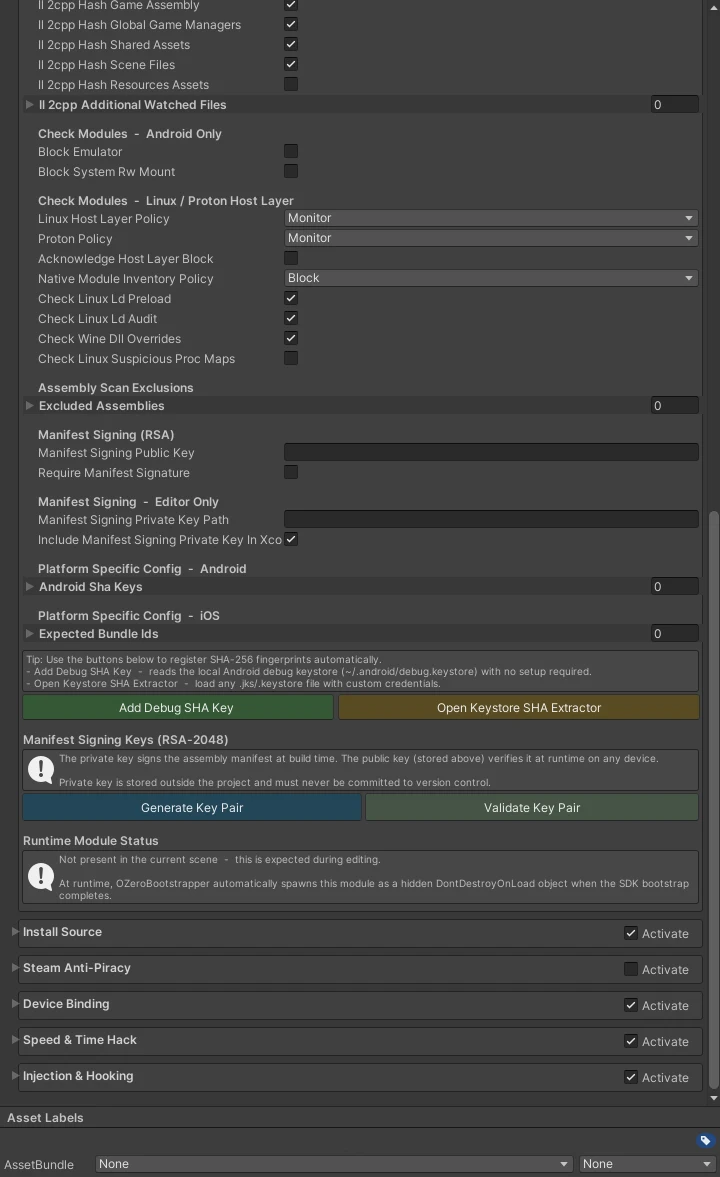
Generate a key pair
- In the Unity Editor, open Window > OZero Security > Config & Dashboard.
- Expand the Build Integrity section on the page.
- Enable the Require Manifest Signature checkbox.
- Click the Generate Key Pair button.
- OZero generates a key pair for Build Integrity manifest signing. The public key is stored in the security settings (Project Settings), and the private key is saved to this default path (the path itself is a per-user value in User Settings):
[ProjectRoot]/OZeroSigningKeys/manifest_private_key.pem - A confirmation dialog showing the private key location appears. Click OK to close it.
- The private key file is stored outside the
Assets/folder to prevent Unity from including it in builds. Never move it intoAssets/. - Exclude
OZeroSigningKeys/from version control with.gitignoreorsvn:ignore. Committing the private key is a critical security risk. - Back up the private key to a secure location. Anyone with this file can create a valid Build Integrity manifest for your project.
- If you lose the private key, already released builds continue to work. However, the next update can no longer sign a new manifest with the old key. Generate a new key pair, regenerate the integrity manifest, and ship a clean build. The public key, fingerprint, manifest, and signature must match, or Build Integrity verification can fail.
Custom Private Key Path (CI/CD & Team Environments)
The Manifest Signing Private Key Path field does not choose where Generate Key Pair creates a new key. It tells the build and validation tools where to read the PEM private key. Generate Key Pair creates the key at the project default path, then records that path in the config. For CI/CD or team builds, restore the same PEM to a secure path first, then point this field at that path.
- CI/CD Pipelines — Store the PEM in a CI secret and restore it right before the Unity build. The runner does not need to keep the key on disk permanently.
- Team Environments — Use a secure mount path or secrets manager that only release builders can access. Every release build machine must use the same PEM.
Validate an existing key pair
To check whether the private key on disk matches the public key stored in the security settings, click Validate Key Pair. OZero derives the public key from the PEM and compares it with the settings. If they do not match, restore the matching private key or generate a new key pair, then rebuild cleanly.
- If the private key is lost or compromised.
- If Validate Key Pair reports a mismatch (keys are not synchronized).
- When deliberately rotating keys as part of a scheduled security policy.
After regeneration, already released builds continue to work with their own embedded key and manifest. The next update build must use the new public key, fingerprint, manifest, and signature as one matching set. Regenerate the integrity manifest and ship a clean build.
Dual Fingerprint Key Rotation
When you click Generate Key Pair, the public key is saved in the security settings, and a fingerprint for that key is recorded in Assets/OZeroSecurity/Scripts/Security/BuildIntegrity/OZeroManifestTrustAnchor.cs. At runtime, the SDK first checks that the public key in the settings still matches the trusted fingerprint before it accepts a signed manifest.
ExpectedPublicKeyFingerprintHex is the fingerprint for the key used by the current build. PreviousPublicKeyFingerprintHex is an optional transition slot. It does not replace manifest regeneration, and it is not a server-side key manager. The public key in the security settings, the fingerprint, the manifest, and the signature still need to be generated as one matching set.
Safe Rotation Procedure
- Back up the current fingerprint. Open
Assets/OZeroSecurity/Scripts/Security/BuildIntegrity/OZeroManifestTrustAnchor.csand copy theExpectedPublicKeyFingerprintHexvalue into a temporary note. - Register into the previous key slot. In the same file, paste the value copied in step 1 into
PreviousPublicKeyFingerprintHexand save. - Generate a new key pair. Open Window > OZero Security > Config & Dashboard, then click Generate Key Pair in Build Integrity. The new public key and Expected fingerprint are updated automatically. Keep the Previous value from step 2.
- Regenerate the integrity manifest and make a clean build. The new manifest and signature must be produced with the new private key.
- Keep a transition period. Existing released builds keep using their own embedded key and manifest. The Previous slot is a safety net for rollback or mixed-artifact cases while the new build rolls out. Choose the window based on your update speed, commonly 1-4 weeks.
- Clear the previous key slot. Once the usage of the old build has dropped sufficiently, revert to
PreviousPublicKeyFingerprintHex = ""and release once more to complete the rotation.
Old shipped builds do not need the new key to keep working. They already carry their own public key, fingerprint, manifest, and signature. The Previous slot is useful for the new release line during a controlled key rotation window. Keep it only as long as you need the transition, then clear it in a later release.
Troubleshooting
Start with the simple checks first: run Generate Key Pair if no key exists, run Validate Key Pair if a key exists, then regenerate the integrity manifest and make a clean build. Most issues come from one of these four items being out of sync: private key PEM, public key in the security settings, fingerprint in OZeroManifestTrustAnchor, or the generated manifest/signature files.
ExpectedPublicKeyFingerprintHex may be empty. Release builds fail closed when the fingerprint is missing. Fix: run Generate Key Pair, wait for Unity to recompile, then make a clean build. If the value is already filled, run Validate Key Pair and rebuild from an empty output folder.
Occurs when Project Settings > OZero Security > Build Integrity > Manifest Signing Public Key is empty. Fix: Open Window > OZero Security > Config & Dashboard, click Generate Key Pair in the Build Integrity section, and rebuild.
Occurs when the public key in the security settings does not match the fingerprint recorded in OZeroManifestTrustAnchor. This often happens after restoring only part of a key pair or manually editing generated files. Fix: run Validate Key Pair. If it reports a mismatch, restore the matching PEM or generate a new key pair, regenerate the integrity manifest, and make a clean build. If this appears only in a distributed build, also check whether the APK or executable was repackaged.
One part of the rotated set is probably stale: public key, fingerprint, manifest, or signature. Fix: keep the old fingerprint in PreviousPublicKeyFingerprintHex only if you need a transition window, then run Validate Key Pair, regenerate the integrity manifest, clear the old build output, and build again.
CI does not automatically have the local OZeroSigningKeys/manifest_private_key.pem file. Fix: store the PEM as a CI secret and restore it before the Unity build, either to the default path or to the custom path configured in Manifest Signing Private Key Path. Make sure every release runner uses the same PEM, then run Validate Key Pair once in the release environment.
Install Source (Android Only) Settings
Restrict the game to run only if installed from approved stores or paths. Useful for preventing sideloading or repackaged APKs.
| Field | Type | Default | Description |
|---|---|---|---|
| Activate Install Source | bool | true | Enable the Install Source module. |
| allowGooglePlayStore | bool | true | Allow installation through the Google Play Store. |
| allowSamsungGalaxyStore | bool | false | Allow installation through the Samsung Galaxy Store. |
| allowAmazonAppstore | bool | false | Allow installation through the Amazon Appstore. |
| allowHuaweiAppGallery | bool | false | Allow installation through the Huawei AppGallery. |
| allowOneStore | bool | false | Allow installation through ONE Store (Korea). |
| allowXiaomiGetApps | bool | false | Allow installation through Xiaomi GetApps. |
| allowOppoAppMarket | bool | false | Allow installation through the OPPO App Market. |
| allowVivoAppStore | bool | false | Allow installation through the Vivo App Store. |
| allowADB | bool | false | Allow installation through ADB (Android Debug Bridge). Enable only for internal testing purposes. |
| allowDetectionFailed | bool | false | Allows startup when the Android installer-package query itself fails. This is different from ADB returning an empty installer value; it means JNI or the platform API could not complete the query. Keep it off for release builds unless you have a tested device-specific reason. |
| allowUnknownSources | bool | false | Allows installer packages that are not in the built-in store list and not in customAuthorizedPackages. Use only for regional stores after real-device testing. |
| Security Config > Install Source (Android Only) > Pro - Online > Check Installer With Server (Pro) | bool | false | Pro only. After local detection, sends the installer package to /v1/install-source/verify so the server can apply a managed allowlist and audit log. If no server rules exist yet, the server allows the source by opt-in behavior. |
| customAuthorizedPackages | List<string> | — | Additional installer package names to allow (e.g., com.yourcompany.launcher). |
| reportViolationToCallback | bool | true | Send a report to the server if an unauthorized installation source is detected. |
| logRawInstallerPackage | bool | true | Logs the raw installer package name. Useful during QA when finding the package name for a custom store, but review release log exposure before leaving it on. |
Steam Anti-Piracy (PC Only) Settings
Checks Steam execution paths, App IDs, authorization states, and release settings for PC builds distributed via Steam. Standard is local verification, while stronger ownership verification via the Steam server is provided by Pro's server Steam Attestation.
OZERO_STEAMWORKS_SDK environment variable).Optional: Required DLC App Ids, only if the game cannot be played without certain DLC.
Advanced (leave empty in most games): Validate Steam Api Dll Hash and Expected Steam Api Dll Sha256 Hashes are off in every preset, and the hash list is not used while validation is off. Without any hashes, the
steam_api hash copied at build time is added to the signed build integrity data automatically, so Build Integrity detects a replaced library, and Require Valve Signed Steam Api (on in the Standard and Strict presets) checks the Valve signature on Windows and macOS. Leave the other fields at the preset values. The Info box at the top of this section in Security Config says the same, and hovering a field shows what changing it does.Steamworks SDK folder and automatic library copy
Select the Steamworks SDK folder (the sdk folder or its parent) in Project Settings > OZero Security > Steam Anti-Piracy (PC Only) > SDK Folder, or in the Steam setup fields of Check Setup. When you build, OZero copies the Steam API library for the target platform into the build output, so you do not copy it by hand:
| Platform | From the SDK folder | Copied to |
|---|---|---|
| Windows x64 | redistributable_bin/win64/steam_api64.dll | steam_api64.dll (next to the executable), <Game>_Data/Plugins/x86_64/ |
| Windows x86 | redistributable_bin/steam_api.dll | steam_api.dll (next to the executable), <Game>_Data/Plugins/x86/ |
| Linux x64 | redistributable_bin/linux64/libsteam_api.so | libsteam_api.so (next to the executable), <Game>_Data/Plugins/x86_64/ |
| macOS | redistributable_bin/osx/libsteam_api.dylib | <Game>.app/Contents/MacOS/libsteam_api.dylib |
Before the build starts, OZero checks the library's file format and architecture and the supported Steamworks versions (SteamApps v008–v009, SteamUtils v009–v010, SteamUser v022–v023). If they do not match, the build stops. The copy happens before the integrity manifest is written, so the Steam library is covered by the integrity check as well. When a macOS build is signed, Valve's signature on libsteam_api.dylib is kept (macOS signing).
Other PCs and CI: the selected folder is saved only in this PC's Editor preferences, not in the project files. On another PC or a CI machine, select the folder again or set the environment variable OZERO_STEAMWORKS_SDK to the SDK folder path. Without either, the build fails with a message that explains this.
Desktop only: Steam Anti-Piracy runs only in Windows, macOS and Linux players. If you build for Android, iOS or WebGL with it turned on, the build continues with a warning: that app does not run the Steam check and does not include the Steam library. Check Setup shows the Info item Steam Anti-Piracy is skipped for this build target.
With Steamworks.NET or another wrapper: if a wrapper plugin put a different steam_api library in the build output, OZero replaces it with the library from the selected SDK and logs a warning in the build log. Select as the SDK Folder the same Steamworks SDK version the wrapper was built for.
| Field | Type | Default | Description |
|---|---|---|---|
| Activate Steam Anti-Piracy | checkbox | Off | Steam Anti-Piracy activation checkbox. The default is Off because Steam App IDs and distribution methods vary by project. Check the status in observe/QA mode first before tightening the release build policy. |
| expectedSteamAppId | int | 0 | Your project's Steam App ID. If you used the development AppID 480 for local checks, be sure to replace it with the actual App ID before release. |
| requireSteamLaunch | bool | true | Checks whether the game was started via Steam rather than directly launching the executable. Keep local development direct-run tests separate from release policies. When a direct launch asks Steam to relaunch the game, this instance exits quietly and the instance started by Steam takes over. |
| requireSteamApiInit | bool | true | Checks whether Steam API initialization is successful. Since local development executions might fail depending on Steamworks settings, the final judgment should be made in the actual Steam distribution path. |
| requireSubscribedCurrentApp | bool | true | Checks if the current Steam account owns or has usage rights to the app. This is a local verification; server-side ownership verification is performed in Pro. |
| requiredDlcAppIds | List<int> | — | Steam App IDs of required DLC (at most 10; more fails the build). If the account does not own every listed DLC, the launch is treated as an authorization failure of the same level as not owning the base game (required_dlc_missing). The check is ownership (Steam BIsSubscribedApp), not installation. Steamworks partner (developer) accounts can be reported as owning their own DLC, so test the not-owned case with a regular account that does not have the DLC. For optional DLC that unlocks content, do not list it here; check it with QueryDlcOwnership. |
| blockSteamAppIdTxtInRelease | bool | true | steam_appid.txt is a development-only file for local launch testing without Steam. If it remains in a release build, OZero treats it as a violation because it can allow Steam-bypass launches. Remove it from the project root and build output before distribution. |
| validateSteamApiDllHash | bool | false | Optional, advanced; off by default (every preset). When on, the Steam API file hash is compared with the expectedSteamApiDllSha256Hashes list and only listed files are allowed. The build fails while the list is empty, and you must update the list every time you upgrade the Steamworks SDK. Most games leave this off. |
| allowFamilySharing / allowFreeWeekend / allowTimedTrial | bool | true | Controls whether to allow Steam Family Sharing, Free Weekends, and Time-Limited Trial authorization states. Note: these policy checks are not applied in current SDK release builds. Leaving a value set does not cause an error. |
| requireSteamBuildIdNonZero | bool | false | Treat the build as invalid if Steam reports Build ID 0 or cannot provide a Build ID. Enable this after your Steam depot/build release flow is confirmed. |
| expectedSteamApiDllSha256Hashes | List<string> | — | Optional, advanced. Allowed SHA-256 hashes of the Steam API file, used only when validateSteamApiDllHash is on; while it is off (the default) the list is ignored. If you turn it on, add the hash for each Steamworks SDK version and platform you ship, and update the list every time you upgrade the SDK. |
| requireValveSignedSteamApi | bool | true | Requires the Steam API redistributable to match Valve's platform identity: the code-signature signer on Windows and the Valve Team ID on macOS. On platforms where the signature cannot be checked, such as Linux, this check logs a warning and passes; Build Integrity still detects a replaced library through the steam_api hash in the build integrity data. To pin the file to a SHA-256 list as well, use the advanced validateSteamApiDllHash option. |
| detectKnownSteamEmulators | bool | true | Looks near the executable for files or folders commonly left by Steam emulators such as Goldberg, CreamAPI, SmartSteamEmu, and ColdClientLoader. If one is found, OZero treats the launch as suspicious. |
| requireSteamEnvironmentConsistency | bool | true | In release builds, checks that Steam returns a valid individual SteamID and a non-zero Build ID. Preflight client/library path checks are logged as warnings, while invalid SteamID or Build ID becomes a violation. |
| observeSteamAuthTicketHeuristic | bool | true | Checks only the size and basic shape of a local Steam auth ticket as a reference signal. OZero does not log ticket bytes, and this check never blocks the game by itself. |
| detectionAction | OZeroPCStoreDetectionAction | Callback | Decides how far the SDK should go when Steam validation fails. Observe records diagnostics only, Callback calls the game callback, and Block treats the event as a blocking policy. Actual app exit still follows Global Threat Response. |
| reportViolationToCallback | bool | true | When Steam validation fails in Callback mode, sends the event to the normal OZero security callback. Turn this off only for QA builds where you want logs but no game callback. |
| forceSteamAntiPiracyObserveOnly | bool | false | Temporarily records Steam failures as diagnostics only, without callback or block behavior. Use it while testing unusual Steam launch environments, then turn it off before release. |
| Security Config > Steam Anti-Piracy (PC Only) > Pro - Online > Check Steam DRM With Server (Pro) | bool | false | Pro only. Enables server-backed Steam DRM verification. Use it when Steam ownership should be checked with server evidence instead of relying only on local Steamworks state. |
| Security Config > Steam Anti-Piracy (PC Only) > Pro - Online > Steam Drm Verification Mode (Pro) | OZeroPCStoreDrmVerificationMode | OZero Managed | Choose who owns Steam DRM attestation. OZeroManaged lets the SDK call OZero /v1/steam/attest directly, manage the activation cache, and route user-facing states to the default Managed Verification UI after the optional OZero TMP dialog package is imported. CustomerGameServer means your server receives the OZA token and Steam ticket from the client, then calls OZero server APIs. |
| Security Config > Steam Anti-Piracy (PC Only) > Pro - Online > Steam Drm Network Policy (Pro) | OZeroPCStoreDrmNetworkPolicy | RequireOnlineRevalidation | Fresh server revalidation that cannot reach the network or server enters the online-required state. With OZeroManaged and the imported built-in UI package, the retry flow appears without game code. |
Steam enforcement level
A Steam violation terminates the game when Detection Action is Callback or Block and Response > Force Quit On Detection is on. This enforcement level is sealed into the boot metadata at build time, and the native code carries out the termination itself. If the sealed value in the build output does not match the security config, the build preflight fails; rebuild in that case.
With Observe or Off, Force Quit On Detection off, forceSteamAntiPiracyObserveOnly on, requireSteamApiInit off, or the Low preset, a violation is only recorded and the game keeps running. These configurations are allowed, but Check Setup shows a warning in its Steam enforcement item and the build logs a warning to the console. When the configuration terminates, the same item reads "terminates on detection".
With the online add-on, when Check Steam DRM With Server lets the server decide Steam ownership, the server decision flow applies instead of native termination, and local Steam violations are recorded as observations.
OZeroManaged, the first protected launch obtains a valid activation token online through OZero. After that, valid cached tokens and offline grace can allow offline play. If the token has expired, grace has ended, or revalidation is required while the user is offline, the default Managed Verification UI handles the online-required notice, Retry button, retry timeout, and blocked state automatically after OZeroSecurity_BuiltInDialog_TMP.unitypackage is imported.
OZero server-managed Steam DRM
Turn on Security Config > Steam Anti-Piracy (PC Only) > Pro - Online > Check Steam DRM With Server, set Steam Drm Verification Mode to OZeroManaged, import OZeroSecurity_BuiltInDialog_TMP.unitypackage, and keep Security Config > Pro - License & Online Services > Online Verification UI > Ui Policy on a built-in dialog. The SDK sends the Steam auth ticket to OZero, manages the activation token cache, and presents online-required, retry, timeout, warning, or blocked states through the default UI. No callback or retry code is required unless you intentionally replace the built-in UI. If Pro activation itself is refused (for example because Product Name is not registered), the Steam message shows the cause: Pro activation was not granted … Cause: <activation error code>. Fix that activation error first (see License Issues).
Customer game-server Steam verification
Turn on Security Config > Steam Anti-Piracy (PC Only) > Pro - Online > Check Steam DRM With Server and set Steam Drm Verification Mode to CustomerGameServer. Your server issues the audience, 256-bit hex challenge, and session ID; after local validation the client calls RequestGameServerAttestation(...) and sends the callback's OZA token, exact binding values, and Steam Auth Ticket to your server. The server calls /v1/validate and /v1/steam/attest. Keep both server API keys on the server only.
Device Binding Settings
Stores a fingerprint for the first trusted device and compares later launches against it. This helps detect when the same account or protected save data is moved to a different device.
How to use it in operations
In Pro, Device Binding becomes an operations tool. The server can remember which device fingerprints belong to a license, block devices that repeatedly show risk, and help support legitimate device changes without disabling the whole license.
Block devices with repeated risk
Use this after reviewing evidence from Security Events such as SpeedHack, Injection, Install Source, or Build Integrity. A blocked device receives DEVICE_BLOCKED on the next activation, device registration, device verify, or policy check.
Support legitimate device changes
Use a Reset Token when a real player changes phones, reinstalls the OS, replaces hardware, or hits a fingerprint mismatch after a normal environment change. The token is valid for 5 minutes, can be used once, and is bound to the exact license and device.
Resetting a binding from your game
When a player legitimately moves to a new device, your game can clear the stored fingerprint with RequestReset. In player builds the SDK asks the authorizer you register with OZeroDeviceBindingDetector.SetResetAuthorizer and resets only when it returns true. After the reset the SDK binds the current device again in the same session, so no restart is needed.
using OZeroSDK.Security;

// Register once at startup.
OZeroDeviceBindingDetector.SetResetAuthorizer(request =>
{
    // Approve only after your own check succeeds, for example a recent
    // account re-authentication or a support code your server verified.
    return MyAccountService.HasVerifiedResetFor(request.Reason);
});

// Later, from your account recovery or support screen:
bool cleared = OZeroDeviceBindingDetector.Instance?.RequestReset("ticket-1234") ?? false;true lets any code in the process, including injected code, clear the binding. Return true only after a real check such as account re-authentication or a support code your server verified. The Demo_DeviceBinding and Demo_OZeroSecurity samples approve every request for demonstration only; do not copy that callback into your game.
In player builds, a reset with neither an authorizer nor a valid server Reset Token is refused and logged as an error. In the Editor the reset always proceeds. RequestReset and the authorizer run synchronously on the calling thread. ClearStoredFingerprint(token) keeps working: with a Pro license and server settings (server URL and license key), a non-empty token is verified as a server Reset Token in the background, so the reset happens after the call returns; await ClearStoredFingerprintAsync(token) on the main thread when you need the result (flow below). Otherwise your authorizer decides and receives the token in request.AuthorizationToken.
Support guide for Standard games
Standard has no OZero server, so the portal Reset Token is not available. Connect your own support check to the reset authorizer (SetResetAuthorizer) instead. Pick one of the approaches below. Whichever you use, return true from the authorizer only after the check has passed, as the warning above says.
A. Your game has its own server or account system (recommended)
- Support issues a one-time support code for the player's account in your back office.
- The player enters the code in the game.
- The game verifies the code with your server first, asynchronously.
- If it passes, the game calls
RequestReset, and the authorizer only checks whether that verification just passed.
Allowing a reset after the player signs in again (platform re-authentication) follows the same structure. The authorizer runs synchronously, so finish the asynchronous check before calling RequestReset:
bool _supportCodeVerified;

void Start()
{
    // The authorizer runs synchronously: it only reports whether the check just passed.
    OZeroDeviceBindingDetector.SetResetAuthorizer(_ => _supportCodeVerified);
}

async void OnSubmitSupportCode(string code)
{
    // Verify the one-time code issued by your support team on your own backend.
    _supportCodeVerified = await MyBackend.VerifyResetCodeAsync(accountId, code);
    try
    {
        bool cleared = OZeroDeviceBindingDetector.Instance.RequestReset("cs-support");
        ShowResetResult(cleared);
    }
    finally
    {
        _supportCodeVerified = false;
    }
}
B. Offline game without a server: signed codes
- The game shows a request code, for example a short encoding of a random single-use value and your own save or player ID.
- Support returns a response code signed with a private key that only your studio holds.
- The game verifies the response with the public key built into it, and the authorizer allows the reset only when the signature is valid. Discard the single-use value afterwards so the same response cannot be reused.
GetCurrentFingerprintHash() in the request code; it is a debug helper and should not be shown or sent from production code.
// Pseudocode. Game: build a request code that the player sends to support.
nonce        = RandomBytes(8)          // keep until the reset is done, then discard
requestCode  = ShortEncode(nonce + yourSaveOrPlayerId)

// Support tool on your side. The private key never ships with the game.
responseCode = Sign(studioPrivateKey, requestCode)          // Ed25519 or ECDSA

// Game: verify with the public key built into the game, then reset.
OZeroDeviceBindingDetector.SetResetAuthorizer(_ => _signedCodeVerified)
_signedCodeVerified = Verify(embeddedPublicKey, requestCode, responseCode)
OZeroDeviceBindingDetector.Instance.RequestReset("cs-offline")
_signedCodeVerified = false
Discard(nonce)
C. Clearing app data or reinstalling
The binding record lives in the app's local storage (PlayerPrefs). After the player clears the app data or reinstalls the app, the next launch registers the device as new. Local saves can be lost too, so give this answer only for games with server or cloud saves.
D. Fewer support requests
With hardwareChangeTolerance at 1 or higher (the Standard preset uses 1; Strict uses 0), a single changed identifier, for example after an OS update or a privacy setting change, is not blocked; the SDK registers the device again.
Pro: use a portal Reset Token with ClearStoredFingerprintAsync(token). See the Reset Token support flow below.
Reset Token support flow (Pro)
- Confirm the player account and why the device reset is needed through your normal support process.
- Open Customer Portal → Device Binding, find the target device, and issue a Reset Token.
- Send the token only through an authenticated support channel. Do not leave it in public chat, screenshots, or long-lived tickets.
- Your game or support UI should pass the token to
await OZeroDeviceBindingDetector.Instance.ClearStoredFingerprintAsync(token.Trim())on the main thread and check the returnedbool.ClearStoredFingerprint(token.Trim())also works, but the server check runs in the background and the reset happens after the call returns. - After the SDK accepts the token, it binds the current device again in the same session. No restart is needed.
| Field | Type | Default | Description |
|---|---|---|---|
| Activate Device Binding | bool | true | Turns on Device Binding checks. When enabled, the SDK creates a local device fingerprint at startup and compares it with the stored value. If a stored fingerprint entry exists but cannot be decrypted (tampered), it is a Device Binding violation (StorageTampered). If no entry exists, for example after app data was cleared, a new one is registered. |
| hardwareChangeTolerance | int (0–3) | 1 | How many fingerprint components may change while still treating the device as the same device. 0 is strict, while 3 is more forgiving for major hardware or OS changes. The default 1 allows small OS or firmware changes. |
| storageKey | string | "ozero_dfp" | PlayerPrefs key used by the SDK to store the encrypted local device fingerprint. Change it only if it conflicts with a key your game already uses. |
| Security Config > Device Binding > Pro - Online > Verify Device With Server (Pro) | bool | false | Pro only. Registers the fingerprint with /v1/device/register on first use, then verifies it with /v1/device/verify on later sessions. Network or server outages do not block the game, but explicit server rejections such as DEVICE_BLOCKED or FINGERPRINT_MISMATCH are treated as Device Binding violations. |
Speed & Time Hack Settings
Compares Unity time, native reference clocks, background timers, and web/Pro server time to detect attempts to speed up or slow down gameplay and to catch device-clock changes. On WebGL the native clock comparison is not available: the startup log says so, and browser clock tampering (Date.now / performance.now) is detected by the WebGL runtime checks of Injection & Hooking instead.
| Field | Type | Default | Description |
|---|---|---|---|
| Activate Speed & Time Hack | bool | true | Turns on Speed & Time Hack checks. When enabled, the SDK watches time-flow ratios and device clock changes at runtime. |
| autoStart | bool | true | Automatically start detection when the game runs. If disabled, you must manually start it using OZeroSpeedHackDetector.StartDetection(). |
| checkInterval | float | 1.0 s | How often the detector compares Unity time with the reference timers. Lower values react faster but may increase CPU cost and false positives. |
| requiredDetections | int | 3 | How many abnormal samples must appear in a row before OZero treats the case as a violation. Increase this on unstable devices to reduce false positives. |
| ratioTolerance | float | 0.15 | Time-flow difference that is still treated as normal between Unity time and the native reference timer. Start with the default and adjust only if real gameplay shows false positives. |
| maxAllowedRatio | float | 4.0 | Maximum allowed time-flow ratio. If the ratio goes past this value, OZero treats it as a strong speed-hack signal. Most games should keep the default. |
| detectSlowHack | bool | false | Also detects slow-motion manipulation, not only speed-ups. Default is false. Enable only after testing normal slow motion, cutscenes, and intentional speed changes in your game. |
| enableTimeScaleDetection | bool | true | Checks whether Time.timeScale was changed by unapproved code or memory editing. Use OZeroTime.timeScale for intentional game-speed changes. |
| hackDetectMultiplier | float | 1.3 | A sample far above maxAllowedRatio is counted as a stronger signal. Most projects should keep the default. |
| enableThreadTimerCheck | bool | true | Uses a background thread timer as an additional reference clock. This helps catch tools that only manipulate the main thread. |
| useWebTimeValidation | bool | true | Cross-checks device clock changes using HTTPS Date headers or Pro server time. Default is true. |
| webSyncInterval | float | 15 s | How often to compare against web or server time while a timing anomaly is under watch. Very short intervals increase network traffic. |
| webSyncIdleInterval | float | 60 s | Web-time interval while no timing anomaly was seen recently. For 5 minutes after a local timing anomaly or a failed web-time round, webSyncInterval is used instead. 0 always uses webSyncInterval. Strict preset: 15 s. |
| webRatioTolerance | float | 0.15 | Time-flow difference that is still treated as normal between device time and web/server time. Validate on real devices with regional network latency in mind. |
| timeOffsetTolerance | float | 60 s | Treated as time manipulation when the device clock moves backwards by more than this many seconds while the game runs, or when the offset to web/server time drifts by this much from the first measurement. A device clock that was already wrong at launch is not treated as manipulation. The baseline is per running process, so the local backward check does not apply on mobile platforms where changing the clock restarts the app (for example the iOS Settings app) or in -batchmode headless players. Base time-gated rewards on server time (OZeroTime signed time). |
| focusIgnoreTime | float | 4 s | Time (in seconds) to ignore immediately after the app regains focus. Prevents false positives caused when the OS suspends the app. |
| loadingGraceTime | float | 6 s | Grace period after app startup or scene loading. It prevents heavy loading from being mistaken for time manipulation. |
| lagSpikeIgnore | float | 0.5 s | Drops samples whose frame delta is larger than this value. This keeps real lag spikes from being counted as time manipulation. |
| buildFailIfTimeScaleTampered | bool | true | Fails the build/verification phase if protected code appears to change Time.timeScale directly outside the approved policy. |
| timeScaleTamperExemptions | List<string> | — | Script or method name patterns that may directly change Time.timeScale. Register only reviewed code such as pause, bullet-time, or cutscene systems, and keep the list small. |
| webTimeUrls | string[] | — | HTTPS addresses used for web/server time checks. Add two or more addresses you operate or trust so one blocked address does not stop the check. The Standard and Strict presets fill in https://www.apple.com/ and https://www.bing.com/ (third-party hosts, not OZero servers). |
| minSuccessfulEndpoints | int | 2 | Minimum number of addresses that must return a valid Date header before OZero trusts the time for that round. Do not set this higher than the number of configured addresses. |
| maxConsecutiveFailures | int | 6 | Runs the onWebTimeUnavailable policy after this many failed web/server time rounds in a row. This gives temporary network errors room before they become a security signal. |
| onWebTimeUnavailable | WebTimeUnavailablePolicy | WarnOnly | Policy used when web/server time cannot be checked for several rounds. WarnOnly logs and continues. Strict treats repeated failure as suspicious and raises a SpeedHack callback. Silent leaves no log, so reserve it for special tests. |
| webSyncJitterPercent | float | 20% | Spreads web/server time checks around the configured interval so devices do not all call at once. For example, 20% makes a 15-second interval run roughly between 12 and 18 seconds. |
| sustainedLagThreshold | float | 0.15 | If the recent average frame time is slower than this value, OZero first treats it as real lag and avoids confirming time-hack evidence immediately. The default 0.15 seconds is roughly 6-7 FPS. |
| sustainedLagGraceDuration | float | 3 s | How long OZero pauses strict timing judgment after sustained lag is detected. The pause is extended while lag continues and is capped by the runtime at 10 seconds. |
| overloadStrictMultiplier | int | 3 | In Strict mode, waits longer when failures look like plain timeouts rather than clear server rejection. Default 3 means the callback fires after up to maxConsecutiveFailures times 3 timeout-like failures. |
| Security Config > Speed & Time Hack > Pro - Online > Enable Remote Speed Hack Config (Pro) | bool | true | Downloads Speed & Time Hack settings from the Pro server. New settings default to true; security presets turn it on only when the license tier is Pro and off on Standard. Only values set in the portal override the local values, and that includes the detection toggles detectSlowHack, enableTimeScaleDetection, enableThreadTimerCheck, and enableSignedServerTime as well as the thresholds. Values left empty in the portal keep the local setting. When disabled or the server is unreachable, only local settings are used. |
| remoteSpeedHackConfigInterval | float | 300 s | How often to refresh Pro remote Speed & Time Hack settings. 0 means fetch once at app startup only; positive values check periodically for new policy. |
| remoteSpeedHackConfigJitterPercent | float | 20% | Spreads Pro remote-config refresh timing so many devices do not call the server at the same moment. |
| Security Config > Speed & Time Hack > Pro - Online > Enable Signed Server Time (Pro) | bool | false | Uses signed Pro /v1/time responses as the preferred trusted time source after Pro activation is available. Enable it after server keys and endpoint tests are complete. |
useWebTimeValidation) is on, the SDK sends HTTPS HEAD requests to the addresses in webTimeUrls and reads only the Date header to compare times. The Standard and Strict presets fill in third-party hosts, https://www.apple.com/ and https://www.bing.com/. These are not OZero servers, and OZero adds no personal data to the requests. If your game must not contact other hosts, replace them with addresses you operate or turn web time validation off.
Use OZeroTime.timeScale instead of Time.timeScale
When the Speed & Time Hack protection module is enabled, project code must not directly modify Unity's built-in Time.timeScale. If code bypasses OZero and writes to it directly, the OZero detector may treat the change as suspicious runtime time manipulation and run the configured response policy.
OZeroSecurityConfig.TimeScaleTamperExemptions is an exception list for scripts that still need direct Time.timeScale access. Keep this list as small as possible.
Use exemptions only for verified third-party plugins or legacy adapter scripts where direct Time.timeScale access cannot be avoided because of the existing structure.
All other project gameplay code should use OZeroTime.timeScale without exception. Use it for pause, slow motion, cutscene speed control, fast-forward, and any other intentional game-speed changes.
using OZeroSDK.Security;

// Correct: the detector knows this is an intentional game-side change.
OZeroTime.timeScale = 0.5f;

// Avoid: this bypasses OZero's expected time-scale tracking.
Time.timeScale = 0.5f;OZeroTime.timeScale wherever possible.
Prevent unintended Watchdog termination during long loading
OZero's native Watchdog checks that Unity's main thread is still running by receiving periodic heartbeat updates. In release builds the heartbeat deadline is about 10 seconds on every platform (after the start-up grace). When the deadline passes, the Watchdog first looks at what the main thread is doing: a thread that is blocked and consuming no CPU (a long synchronous load, a log flush, disk I/O, a virtual machine pausing the thread) is treated as a stall and only logged, while a game that keeps running without sending heartbeats is treated as tampering and terminated according to the configured response policy. A process that stays stalled for more than five minutes is closed as hung.
This can happen during legitimate work such as large scene loading, synchronous asset decompression, shader warmup, or Addressables preparation when the main thread is intentionally blocked for several seconds.
Wrap that trusted loading boundary with OZeroWatchdog.BeginLoadingGrace(maxGraceMs). The grace starts when loading begins and ends immediately when the scope is disposed or End() is called, so you do not need to know the exact loading time in advance.
using OZeroSDK.Security;
using UnityEngine.SceneManagement;

public void LoadLargeScene()
{
    using (OZeroWatchdog.BeginLoadingGrace(60000))
    {
        SceneManager.LoadScene("Battle", LoadSceneMode.Single);
        // Grace ends as soon as the using scope exits.
    }
}

public void WarmUpLargeAssets()
{
    OZeroWatchdog.RunWithLoadingGrace(() =>
    {
        BuildLargeRuntimeCache();
    }, 60000);
}This feature is a temporary grace period that prevents the app from being terminated during long, legitimate loading work. It cannot be used for security bypasses or to keep the app running indefinitely.
If a heavy loading task may exceed the allowed time, split it into smaller steps or use Unity Coroutines / async loading so the screen and main thread do not stay frozen.
Physics Hack Detector
OZeroSecurityConfig.PhysicsHack controls the global on/off switch, Pro remote configuration downloads, and Pro telemetry. Speed limits, distance tolerance, wall-crossing checks, and acceleration checks are configured on each OZeroPhysicsHackDetector component. Attach it to the player prefab, tune the values for the real movement rules of that character or vehicle, and call Initialize(playerId) after spawn.| Field | Type | Default | Description |
|---|---|---|---|
| physicsHack.useGlobalPhysicsHack | bool | true | Global on/off switch for all Physics Hack components. Turn it off only when you intentionally want every physics movement check to stop. |
| Security Config > Pro - License & Online Services > Telemetry > Enable Remote Physics Config (Pro) | bool | true | Downloads global PhysicsHack settings at startup on Pro. New settings default to true; security presets turn it on only when the license tier is Pro and off on Standard. Only values set in the portal (useGlobalPhysicsHack, telemetryThrottlePerMinute) override the local values, and the server can only switch telemetry off, never on. When disabled or the server is unavailable, local settings are used. Per-character movement thresholds are separate settings. Read the value in code through the read-only EnableRemotePhysicsConfig property. |
| Security Config > Pro - License & Online Services > Telemetry > Enable Server Telemetry (Pro) | bool | true | Pro only and enabled by default. This project setting controls both general security-event telemetry and the detailed PhysicsHack stream. Turning it off stops new telemetry events, and a server policy can disable but never re-enable transmission once it is turned off locally. |
| Security Config > Pro - License & Online Services > Telemetry > Telemetry Throttle Per Minute (Pro) | int | 30 | Maximum number of PhysicsHack telemetry events this client can send per minute. This prevents a bad threshold from flooding the server. |
| Field | Type | Default | Description |
|---|---|---|---|
| maxAllowedSpeed | float | 15 u/s | Maximum normal movement speed for this object, in Unity units per second. Set it to the fastest legitimate speed this character or vehicle can reach in the game. |
| distanceTolerance | float | 2.0 u | Extra distance allowed beyond the movement distance calculated from maxAllowedSpeed. Use it to absorb network position correction, physics rounding, and small controller jitter. |
| obstacleLayer | LayerMask | — | Layers treated as walls or solid obstacles. OZero checks the path from the previous safe position to the current position; if that path crosses one of these layers, it can be treated as wall clipping. |
| checkInterval | float | 0.05 s | How often this component checks position, wall crossing, and acceleration anomalies. Lower values react faster but use more CPU. |
| maxDeltaTimeCap | float | 0.1 s | Maximum frame time used in the distance calculation. This prevents one long frame from giving a cheater a very large allowed movement distance. |
| violationThreshold | int | 2 | Number of bad checks required before the callback fires. A normal check lowers the counter, so one small physics glitch does not immediately become a violation. |
| castRadius | float | 0 | Radius used for wall-crossing checks. 0 lets OZero estimate it from a CharacterController or CapsuleCollider; if none is found, it falls back to a line check. |
| enableAccelerationCheck | bool | true | Checks sudden Rigidbody speed changes. Consider disabling it for kinematic objects, server-authoritative movement, or custom movement that normally changes velocity outside the physics solver. |
| maxAllowedAcceleration | float | 60 | Maximum speed change allowed between checks. Raise this for dash, knockback, launch pads, vehicles, or other legitimate burst movement. |
| enableLog | bool | true | Shows debug logs from this component while tuning. Serious setup issues, such as an empty obstacle layer, still warn even when this is off. |
Injection Detector Settings
Detects programs that get inside the running game: injected native modules, executable private memory, inline hooks, remote-thread style injection, high-risk process handles, and WebGL runtime tampering. Normal overlays and capture tools enter the game the same way, so the detector identifies every module by file hash and signer and lets you decide per module.
Allow a module only when a normal overlay, recorder, partner SDK, or module shipped with your game is detected. Confirm the module name, file hash, and signer from Failure Diagnostics or the Pro portal first. Never allow a module just because it appears often — cheat tools are common too.
| Field | Type | Default | Description |
|---|---|---|---|
| Activate Injection & Hooking | checkbox | On | Dashboard checkbox that maps to useInjection. In player builds it enables the native injection checks; development builds use a softer diagnostic flow. In Editor Play Mode the detector arms only when Editor Play Mode Protection is Test. |
| injectionWhitelistEntries | OZeroInjectionWhitelistEntry[] | empty | Local trusted module list available in all tiers. Each entry allows one specific module by SHA-256 file hash and optional signer fingerprint. Add only modules shipped with the game or verified through QA, diagnostic files, Pro telemetry, or OZero support guidance. |
| Security Config > Injection & Hooking > Pro - Online > Enable Server Whitelist (Pro) | bool | false | Downloads signed module allow/block lists on Pro. The single enableServerWhitelist switch controls downloads; approval and rejection lists have separate expiry times. Allowed modules are silenced and explicitly blocked modules follow the block policy. Only verified lists are cached, and offline starts use decisions that are still valid. Defaults to false. |
| Security Config > Injection & Hooking > Pro - Online > Enable Injection Scoped Exact (Pro) | bool | false | Looks up each observed module by hash on the server instead of downloading the full list. Not yet available: the OZero server has not enabled scoped lookups, so turning this on has no effect and the SDK keeps using the regular server whitelist. Leave it off. |
| Security Config > Injection & Hooking > Pro - Online > Enable Injection Bloom Advisory (Pro) | bool | false | Uses the signed global module index to prioritise lookups (advisory only). Not yet available: the global index root keys are not published, and turning this on together with enableInjectionScopedExact fails the build with root_unconfigured. Leave it off. |
| serverWhitelistRefreshInterval | float | 0 s | How often the running app polls for the server list. 0 disables periodic polling only; the startup download and automatic renewal before expiry still run. |
| requireSignerForNativeWhitelist | bool | false | Requires Windows PE and Apple Mach-O whitelist entries to include a signer fingerprint as well as the file hash. Stronger, but use it only after you can collect clean signer data. Android/Linux shared libraries normally remain hash-only. |
| Security Config > Injection & Hooking > Pro - Online > Enable Remote Injection Config (Pro) | bool | true | Downloads Injection settings from the Pro server. New settings default to true; security presets turn it on only when the license tier is Pro and off on Standard. Only values configured on the server override local settings; disabling this option uses local settings only. Server whitelist downloads are controlled separately by enableServerWhitelist. |
| remoteInjectionConfigInterval | float | 300 s | How often the Pro remote Injection config is checked again. 0 means the SDK fetches it only once during startup. |
| enableWindowsModuleIdentityScan | bool | true | Identifies every module that appears after start-up by file hash and, on Windows/macOS, signer fingerprint, on all native targets (the legacy field name says Windows). iOS/macOS treat images inside the app's own bundle as the game's code; Android/Linux identify shared objects by hash. See How the detector identifies a module. On macOS, an in-bundle image signed by a different signer than the app is an injection candidate. |
| enableWindowsSystemModuleScan | bool | true | Checks modules loaded into the game from Windows System32, SysWOW64, and WinSxS directories. When enabled, a module or hook target is not trusted simply because it is in a system folder. Low: false; Standard/Strict: true. Module identification also requires enableWindowsModuleIdentityScan. Inline-hook scanning has its own separate switch. |
| scanIntervalSeconds | float | 2 s | Main Injection scan interval. Lower values detect faster but add more runtime overhead. The runtime clamps this value to a safe range. |
| windowsModuleIdentityScanIntervalSeconds | float | 5 s | Separate interval for the heavier native module identity scan. Increase it if module enumeration or hash/signer checks are too expensive on your target device. |
| scanJitterPercent | float | 20% | Spreads each periodic Injection check slightly around the configured interval. This keeps checks from running at an easy-to-predict exact second. |
| enableExecutablePrivateMemoryScan | bool | true | Detects executable private memory that was not loaded as a normal module. This catches shellcode-style payloads, but a bare executable region only accumulates evidence; it never closes the game on its own. The scan is switched off automatically on Mono scripting-backend builds on every platform, because the Mono JIT creates exactly this kind of memory. |
| enableInlineHookScan | bool | false | Checks whether sensitive native API entry points look patched. This is useful for strict builds, but overlays and security software can hook APIs, so enable it only after compatibility testing. |
| enableThreadStartAddressScan | bool | true | Checks whether a native thread starts from suspicious memory outside trusted loaded modules. This helps catch remote-thread style injection on supported platforms. |
| enableExternalProcessHandleScan | bool | true | Checks for external processes holding high-risk handles to the game process, such as debugger or memory editor attach states. Supported mainly on Windows. |
| detectionConfidenceThreshold | int | 70 | Minimum confidence score for a strong Injection signal to be treated as a violation immediately. Lower-confidence signals can still be handled by consecutive or sliding-window checks. Clamped to 60–100: below 60 every in-process JIT engine (WebView, Lua, Mono) would look like a violation. |
| enableWebRuntimeTamperScan (WebGL) | bool | true | WebGL-only browser runtime checks. WebGL cannot use Native C++ module scanning, so these probes look for browser-side tampering signals and should be treated as supplementary client-side evidence. |
| webRuntimeScanIntervalSeconds (WebGL) | float | 1.5 s | Base interval for WebGL runtime checks. The runtime clamps it to 0.5-30 seconds so the browser is not checked too aggressively. |
| webRuntimeScanJitterPercent (WebGL) | float | 20% | Spreads WebGL runtime check timing around the configured interval so checks do not run at a perfectly predictable moment. |
| WebGL probes | bools | true | Individual WebGL probe switches for DevTools, clock hooks, network hooks, WebAssembly hooks, storage hooks, and crypto API hooks. |
An unfamiliar system module does not immediately close the game. It is recorded for review; repeated sightings or a missing embedded signature alone do not trigger a block. Existing allow rules still apply, as do explicit blocks matched by file hash. Configure this option in Unity's Injection settings; it cannot be changed remotely from the Pro portal. Other platforms are unaffected.
How the detector identifies a module
Every few seconds the detector walks the complete list of modules loaded in the game process and compares it with the set it saw at start-up. A new module is identified by its file hash and, on Windows and macOS, by the fingerprint of the certificate that signed it. Rules look at the module itself, never at the folder it was installed from, so a normal program is not flagged because of its install path.
| Platform | What counts as the game's own code |
|---|---|
| Windows | The game's own native modules are checked against the signed build-integrity hash list, not trusted by folder location. With enableWindowsSystemModuleScan=false, modules in System32, SysWOW64 and WinSxS are excluded from identity checks. When enabled, these system modules are checked even if they were already loaded when the game started. Unfamiliar system modules are recorded for review; explicit blocks matched by file hash still apply. Existing hash/signer allow rules and silencing for verified vendors remain in effect. A native file in the game folder that is missing from the signed list is treated as a Build Integrity violation at startup. |
| iOS / macOS | Any image that belongs to the app's own .app bundle, plus Apple platform images. Nothing has to be generated at build time. This needs iOS 14.0 or later; the Editor preflight fails for a lower target. On macOS, only in-bundle images signed by the app's own signer (the signature on GameAssembly.dylib / UnityPlayer.dylib) count as game code. Ad-hoc, unsigned, or differently signed images are injection candidates (bundle_signer_mismatch) even inside the bundle; the Valve-signed libsteam_api.dylib is exempt. No comparison is made when the app itself is ad-hoc signed. |
| Android / Linux | Shared objects present at start-up that pass the same rules as at runtime, system and engine runtime libraries, the Steam overlay, and the application's own libraries — on Linux recognised by the signed build inventory (never by folder), on Android by the installed package directory, which only the OS can write. The Android system WebView provider counts as a platform component. Executable memory that belongs to no file is reported by the same pass but only accumulates; it never terminates on its own. Linux host layers and Proton follow the Build Integrity policy above (Monitor by default). |
Each check returns one of three answers per detection family: detected, scanned clean, or not due yet. Only real samples move the counters; a check that did not run never resets a previous detection, and a check that could not run at all is reported as a scanner health problem rather than a clean result.
What happens after a confirmed detection. With Force Quit On Detection on (the Standard and Strict presets), a confirmed injected module closes the game after the callback grace period, even if your OZeroSecurityReceiver or callback only logs it; on Windows the native module watchdog closes it directly. To handle injection only in your own code, turn Force Quit On Detection off (the Low preset) and react in your Receiver.
Pro builds. An unsigned module injected into a Pro build also makes the license server reject the next online check (about every 4 minutes). That rejection is a Build Integrity failure and always closes the game, whatever Force Quit On Detection or your callback does. Allow the module from the portal if it is legitimate.
Pro: allow or block observed modules from the portal
With enableServerWhitelist enabled, a Pro build downloads a signed list combining your project's portal decisions with OZero's global decisions. It downloads at startup, polls at the configured interval, and automatically renews approval and rejection lists before they expire.
| Decision | What the game does |
|---|---|
| Allow | The module (matched by hash and signer) is added to the native trusted list and no longer treated as a threat on any device of the project. |
| Block | Any game that has this module loaded is closed immediately, without waiting for repeated detections. Reserved for confirmed cheat tools. |
| Watch | Not sent to the game. The module keeps being recorded so the team can decide later with more evidence. |
- The list is bound to your license and signed with the license server key (Ed25519). The SDK verifies it with the same public key it already trusts for activation.
- A verified list is kept on the device and applied on offline starts. A list that fails verification is never accepted, and detection itself is never switched off.
- A device that never connected uses only the baseline trusted list shipped in the build. When a later refresh finds the server, the list is fetched and cached.
- When OZero blocked a module that your project allowed, the portal setting When OZero's verdict and your project's verdict differ decides which one wins (default: OZero). A module your project blocked is always blocked.
- ABI 21 SDKs also report the code-signing subject of Windows and macOS modules (for example
Discord Inc.), so the portal can show a company name next to the certificate fingerprint. iOS and Android modules carry no readable signer. - A module the detector has seen but not yet acted on is sent to the portal's Observed modules list with the source label Seen before any decision, so you can allow or block it before any player is affected. A module whose code-signing certificate chain validated on the device is shown with trusted signature; such modules are never closed automatically by the identity rule — they wait for your decision.
Scanner unavailable (abort code 0x15)
If the native scanner itself cannot run — the configuration could not be applied, native scans keep failing, or the managed and native halves disagree on the contract — the SDK reports ModulationType.InjectionScannerUnavailable (value 10, abort code 0x15, message key injection_scanner_unavailable) and closes the game even when ForceQuitOnDetection is off. This is not an attack detection: a scanner that is silently broken would leave the game unprotected. Show players a support code such as OZ-SEC-15 and keep the abort code in your logs.
PlayerPrefs Encryption
For new keys that need protection, store values with OZeroSafePlayerPrefs instead of Unity PlayerPrefs. The common Get/Set, HasKey, Delete, and Save names are familiar, but encrypted data is not compatible with existing plain PlayerPrefs data.
using OZeroSDK.Security;

// Save a value
OZeroSafePlayerPrefs.SetInt("score", 4200);
OZeroSafePlayerPrefs.SetFloat("volume", 0.8f);
OZeroSafePlayerPrefs.SetString("username", "Hero");

// Read a value
int    score    = OZeroSafePlayerPrefs.GetInt("score", 0);
float  volume   = OZeroSafePlayerPrefs.GetFloat("volume", 1.0f);
string username = OZeroSafePlayerPrefs.GetString("username", "");
Save File Encryption
To encrypt save files, use OZeroSV_File instead of File.ReadAllText / File.WriteAllText. Files are automatically encrypted on write and decrypted on read. It also checks for tampering upon loading.
using OZeroSDK.Security;

string path = Application.persistentDataPath + "/save.json";

// Write encrypted file
OZeroSV_File.WriteAllText(path, jsonString);

// Read and decrypt file
string json = OZeroSV_File.ReadAllText(path);developerSecret after release. developerSecret is the base value used to derive the encryption key for OZeroSafePlayerPrefs and OZeroSV_File data. If this value changes after release, protected data saved by previous versions cannot be read by newer builds. OZeroSV_File detects the key change, returns null and raises the OZeroSV_File.OnKeyMismatch event (not treated as a security violation); OZeroSafePlayerPrefs returns default values. To preserve user data, your game must migrate or reset it.
4
In-Game Variable Protection (Secure Types)
Secure Types replace regular C# variable types with encrypted types. Values are stored in the Native C++ heap, so memory scanners and memory editors cannot find them even if they scan the memory. Just change the type name, and the rest of the code will work exactly the same.
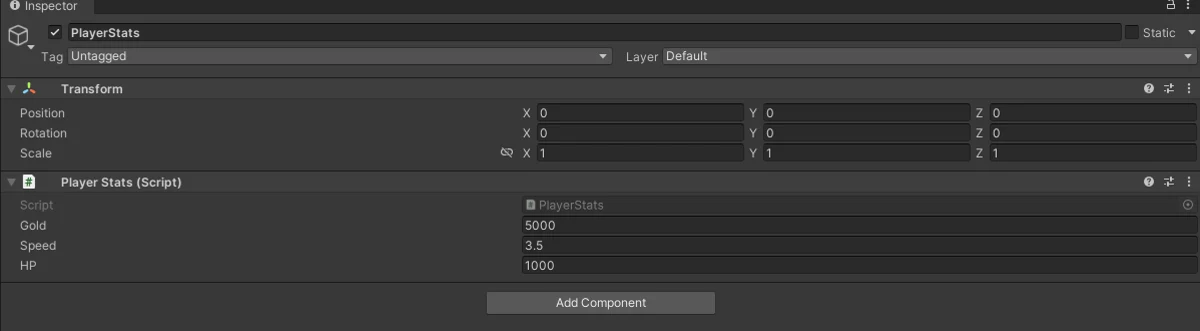
Example code
using System.Collections;
using System.Collections.Generic;
using UnityEngine;
using OZeroSDK.Security;

public class PlayerStats : MonoBehaviour
{
    [SerializeField] OZeroSV_Int Gold = 5000;
    [SerializeField] OZeroSV_Float Speed = 3.5f;
    [SerializeField] OZeroSV_Int HP = 1000;
}
Supported types
| Before | After OZero |
|---|---|
| int | OZeroSV_Int |
| long | OZeroSV_Int64 |
| uint | OZeroSV_UInt |
| ulong | OZeroSV_UInt64 |
| short | OZeroSV_Short |
| ushort | OZeroSV_UShort |
| byte | OZeroSV_Byte |
| float | OZeroSV_Float |
| double | OZeroSV_Double |
| decimal | OZeroSV_Decimal |
| bool | OZeroSV_Bool |
| string | OZeroSV_String |
| Vector2 | OZeroSV_Vector2 |
| Vector3 | OZeroSV_Vector3 |
| byte[] | OZeroSV_Buffer |
7
Security Event Handling (Optional)
By default, OZero either terminates the app or logs the event according to the configured response policy when a threat is detected. If you need to directly display a warning screen, send a custom server log, or perform save processing right before termination, you can register a callback. The callback passes the OZeroSecurityEvent containing the modulation type, abort code, message key, detailed message, and whether termination is pending.
using UnityEngine;
using OZeroSDK.Security;

public class SecurityHandler : MonoBehaviour
{
    void OnEnable()
    {
        // RegisterUserCallback runs on the user chain only.
        // The built-in default handler runs independently and cannot be silenced.
        OZeroSecurityManager.Instance.RegisterUserCallback(OnThreatDetected);
    }

    void OnDisable()
    {
        OZeroSecurityManager.Instance.UnregisterUserCallback(OnThreatDetected);
    }

    void OnThreatDetected(OZeroSecurityEvent evt)
    {
        // evt contains Type, AbortCode, AbortCodeHex, MessageKey, Message, and WillAbort.
        Debug.LogWarning(
            $"OZero threat: {evt.Type} {evt.AbortCodeHex} {evt.Message}");

        switch (evt.Type)
        {
            case ModulationType.SpeedHack:
                // e.g. kick the player, show warning, report to server
                break;

            case ModulationType.BuildIntegrity:
                // evt.WillAbort is usually true for fatal build integrity violations.
                break;

            case ModulationType.Injection:
                break;
        }

        if (evt.WillAbort)
        {
            // Last chance to flush your own analytics or save state.
        }
    }
}
The complete lists for OZeroSecurityEvent, ModulationType, and OZeroAbortCode are documented in the API Reference.
evt.WillAbort is true, the app will terminate after the callback according to the current response policy. In this case, only perform brief custom analytics flushes or save processing.
When a threat is detected, OZero first applies the SDK's default response policy and also delivers the same security event to callbacks and Inspector events registered by the project. Register a callback if you want to display a custom warning screen or write server logs. Whether the app will terminate can be checked via the Config Dashboard's Response settings and the evt.WillAbort value.
Portal policy callback
Customer Portal policies can be operated in stages. Observe only records evidence, Callback sends a server-issued policy action to the game, and Device Block blocks the selected device on later server verification. Use Callback when you want the game to show a warning, limit matchmaking, request re-login, or route the player to support before using a stronger device block.
using UnityEngine;
using OZeroSDK.Security;

public class PolicyActionHandler : MonoBehaviour
{
    void OnEnable()
    {
        OZeroSecurityManager.Instance.RegisterUserPolicyActionCallback(OnPolicyAction);
    }

    void OnDisable()
    {
        OZeroSecurityManager.Instance.UnregisterUserPolicyActionCallback(OnPolicyAction);
    }

    void OnPolicyAction(OZeroPolicyActionEvent evt)
    {
        Debug.LogWarning(
            $"Policy callback: {evt.Module}, score={evt.Score}, reason={evt.Reason}");

        if (evt.Score >= 80)
        {
            // Show your own UI, limit sensitive actions, or ask the player to reconnect.
        }
    }
}
Next Steps
The core OZero protection features are now running. Please check the API Reference for detailed information on all classes, methods, and configuration options.
Troubleshooting Reference
Use this section when an OZero dialog appears, a security log is reported, or the app closes for a security reason. Start with the code shown on screen or in the log, then follow the first checks below.
Support Codes
Support codes are short labels shown in OZero dialogs and logs. When a player sends this code to support, the development or QA team can quickly identify which broad area to check. OZ-SEC-* means a security event was reported, and OZ-MV-* means an online or managed verification state needs attention.
| Code | Category | What to check |
|---|---|---|
| OZ-SEC-01 | Memory protection | Check whether protected values were changed by an unsupported path, a test tool, or an incorrect Secure Types integration. |
| OZ-SEC-02 | Injection or hook | Check whether an overlay, debugger, modding tool, or other external program was attached. Add exceptions only after QA confirms the program is trusted. |
| OZ-SEC-0A | Build integrity / Environment tamper | The notice label tells which one. Build integrity: check whether the build, manifest, signing information, native variant, or packaged files changed after the release build was prepared. Environment tamper: a debugger, a cheat or reverse-engineering tool process, a VM or emulator, or root/jailbreak was detected; check what was running on the device. |
| OZ-SEC-0C | Speed or time change | Check speedhack tools, device clock changes, direct Time.timeScale writes, and legitimate slow-motion or pause flows. |
| OZ-SEC-0E | Device or install policy | Check the install source, store package identity, emulator/root/jailbreak policy, and device-binding support process. |
| OZ-SEC-0F | Physics check | Check whether movement limits, collision layers, dash, knockback, or vehicle movement are tuned for the actual game rules. |
| OZ-SEC-10 | Runtime environment | Check whether the app is running in a supported device, browser, emulator, debugger, or platform test environment. |
| OZ-SEC-13 | Steam verification | Check Steam launch state, AppID, ownership verification, required Steamworks files, and network connection. |
| OZ-SEC-15 | Injection scanner unavailable | Not an attack. The native injection scanner could not run (configuration not applied, repeated native scan failures, or a managed/native contract mismatch). Check that the SDK and native binaries come from the same package and reinstall the game before escalating. |
| OZ-SEC-1F | Unknown category | Collect the platform, SDK package version, native ABI, Player log, ozero_abort.txt, and exact reproduction steps. |
| OZ-MV-LOCAL | Managed verification | Check license activation, server/network access, registered app identity, platform signing information, and the currently applied variant manifest. |
Abort Codes
Abort codes are stable categories used in logs, callbacks, and OZ-SEC-* support codes. They tell the development team which protection area responded without exposing detailed evidence to the player.
| Code | Category | Meaning |
|---|---|---|
| 0x01 | Memory protection | Protected memory value changed unexpectedly. |
| 0x02 | Injection or hook | Unexpected module, hook, or runtime injection signal detected. |
| 0x0A | Build integrity / Environment tamper | Build integrity validation failed, or a build integrity runtime-environment check (debugger, cheat or reverse-engineering tool process, VM or emulator, root/jailbreak) detected a finding. |
| 0x0C | Speed or time change | Suspicious execution speed, time scale, system clock, or trusted-time anomaly detected. |
| 0x0E | Device or install policy | Device binding or install-source policy rejected the current environment. |
| 0x0F | Physics check | Abnormal physics behavior exceeded the configured policy. |
| 0x10 | Runtime environment | Unsupported or unsafe runtime environment detected. |
| 0x13 | Steam verification | Steam ownership or ticket validation failed. |
| 0x15 | Injection scanner unavailable | The injection scanner itself could not run; the SDK fails closed instead of running unprotected. |
| 0x1F | Unknown category | A security event did not match a more specific public category. |
| 0x0BADB007 | Startup check | Boot-ACK timeout: the managed OZero bootstrap did not confirm startup in time. |
| 0x0BADB008 | Startup check | Load anchor timeout: the OZero native library was loaded, but the OZero bootstrap did not start within 90 seconds. The build's OZero startup entries were probably removed or edited. |
For API fields and callback examples, see OZeroAbortCode & Event Messages.
Resolution Workflow
| Step | Action | Expected evidence |
|---|---|---|
| 1 | Record the support code shown on screen or in the log, plus the platform. | The screenshot or ticket should include the code, OS, Unity version, SDK package version, and whether the build is Development or Release. |
| 2 | Check ozero_abort.txt and the Player log first. | These files can still help when the app closes before a popup appears. |
| 3 | If the issue is reproducible in QA, enable Enable Failure Diagnostics, reproduce once, then disable it again. | The latest ozero_*_failure.log helps identify which protection area responded. Use this file only for QA or support investigation. |
| 4 | Run Window > OZero Security > Check Setup before changing policies. | Preflight can catch missing required packages, manifest/signing mismatch, platform settings, ProGuard/R8 settings, native plugins, and obvious license setup issues. |
| 5 | For Pro or managed verification cases, compare portal registration with the actual build information. | Confirm package/app ID, platform signing information, SDK package, native ABI, active variant manifest, license tier, server connection, and any downgraded or limited state. |
| 6 | After the fix, rerun the matching platform QA scenario. | Capture survival timing, Managed UI visibility, simulated or real attack result, popup countdown, and final logs before closing the ticket. |